
This walkthrough shows you how to send one handwritten card, send multiple cards to a list, set up automatic birthday cards, or send cards for another date, such as work anniversaries, with Scribble Cards. Each section shows the screens and choices you’ll use.
You choose the outside, type your message, and check the handwriting and addresses online. Scribble Cards writes the note with a real pen, addresses the envelope, and mails the physical card in the United States.
Before you start: create your free account
Start by creating a free Scribble Cards account. Enter your email, choose Email me a code, then enter the code you receive and choose Continue.
Once you’re signed in, open My cards in the website header, or go directly to scribblecards.com/app. The screenshots below start on that account’s Overview screen. The public homepage is a different screen.
Card pricing and bulk discounts
One card costs $6.99, including handwriting, an addressed envelope, and U.S. postage. Larger credit bundles lower the price per card. One credit sends one card, and credits never expire. See bulk pricing.
How to send one handwritten card online
The screenshots use an example account and invented names and addresses. Follow the same steps with your own details.
1. Open My cards and choose “Send one card”
Sign in and open My cards. On the Overview screen, choose Send one card, then Choose a card.
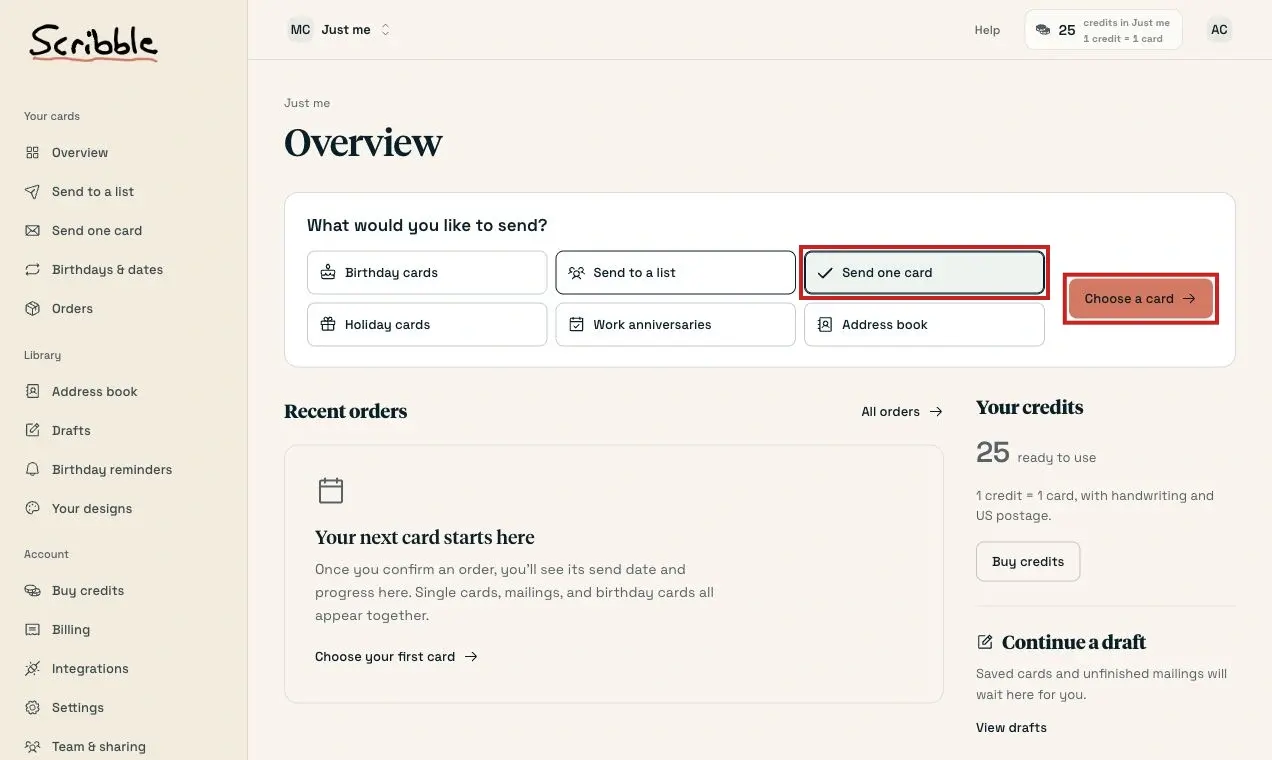
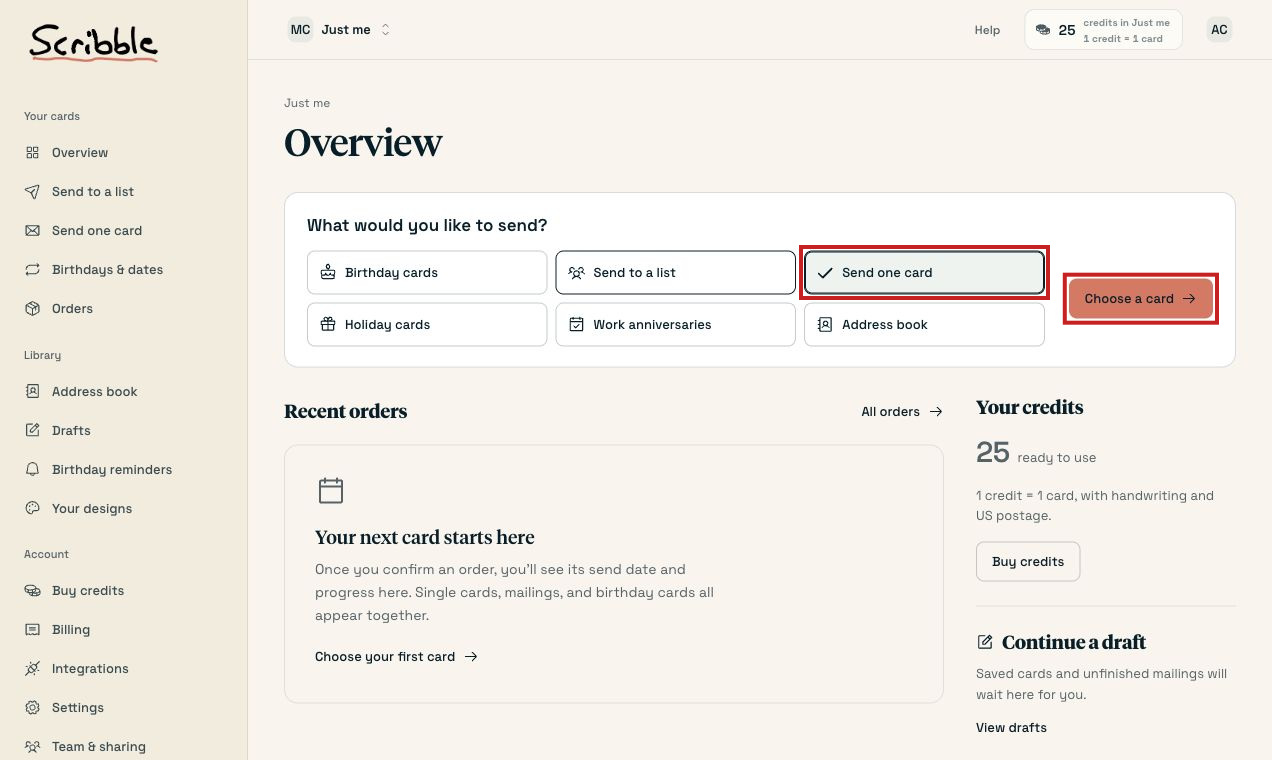
Start here for one card. The other choices are for mailing lists, birthdays, anniversaries, and holidays.
2. Choose the outside of the card
Use Find a card to search, or choose an occasion such as a birthday or thank-you. Open the design you want and choose Write this card.
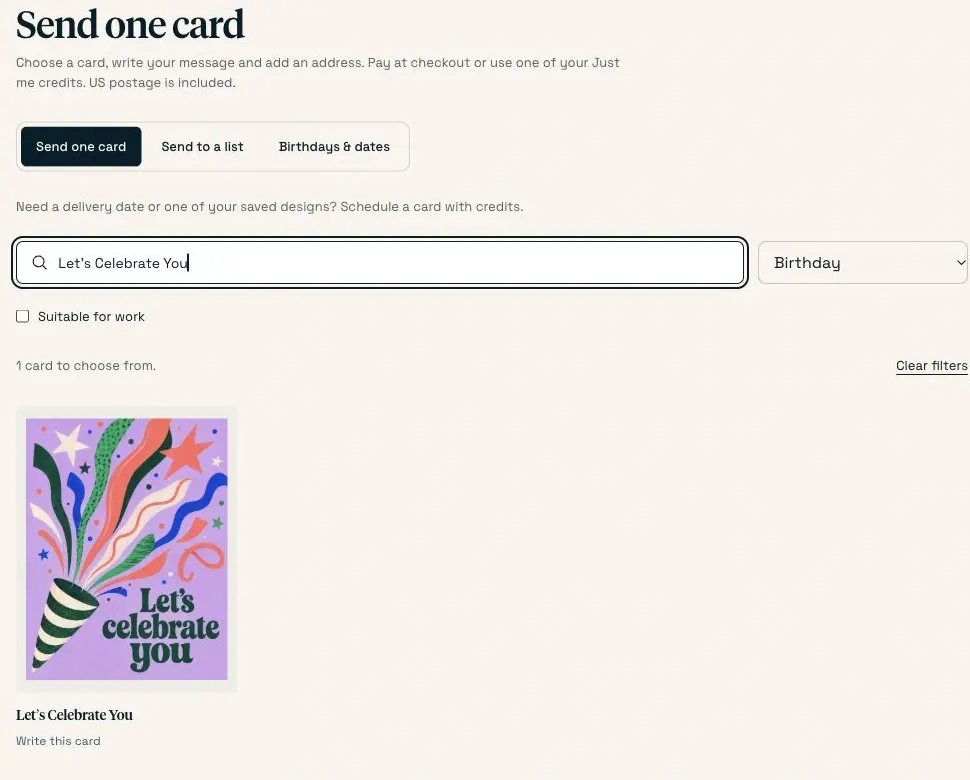
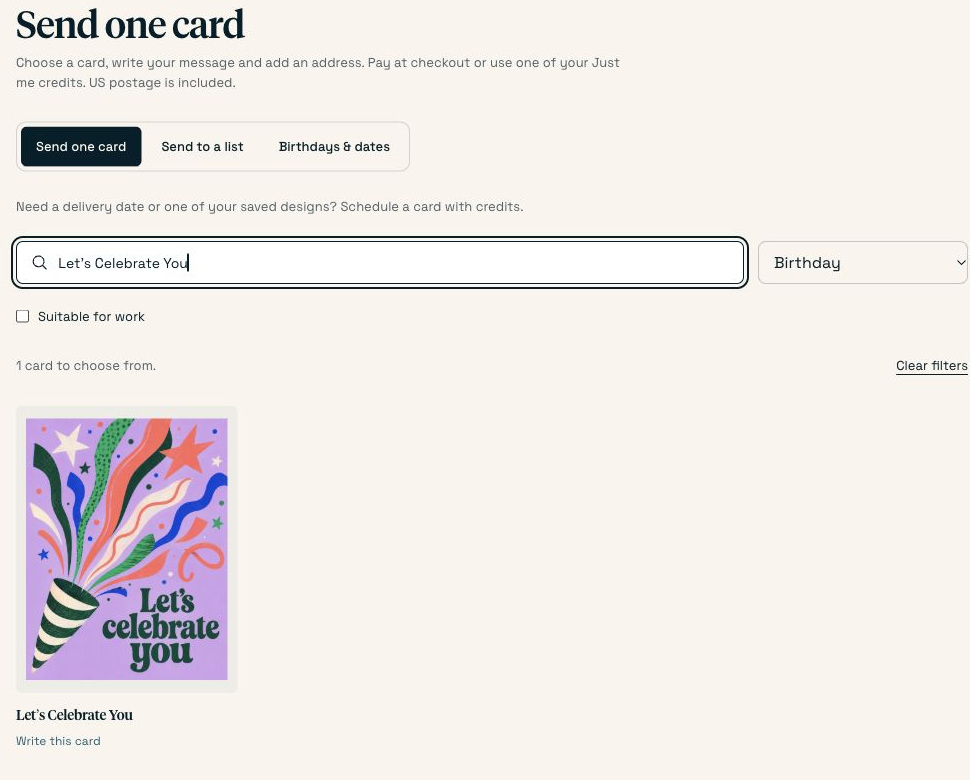
The outside is printed. You write the note for the inside in the next step.
Choose a design the recipient would enjoy. If you’re writing to a client, the Suitable for work filter can help narrow the collection. For a company’s own artwork, use the upload instructions below.
3. Write the message and choose the handwriting
At Message, type the whole note, including your greeting and sign-off. Choose a style under Handwriting, then read the Inside preview. You can switch to Front to check the outside again.
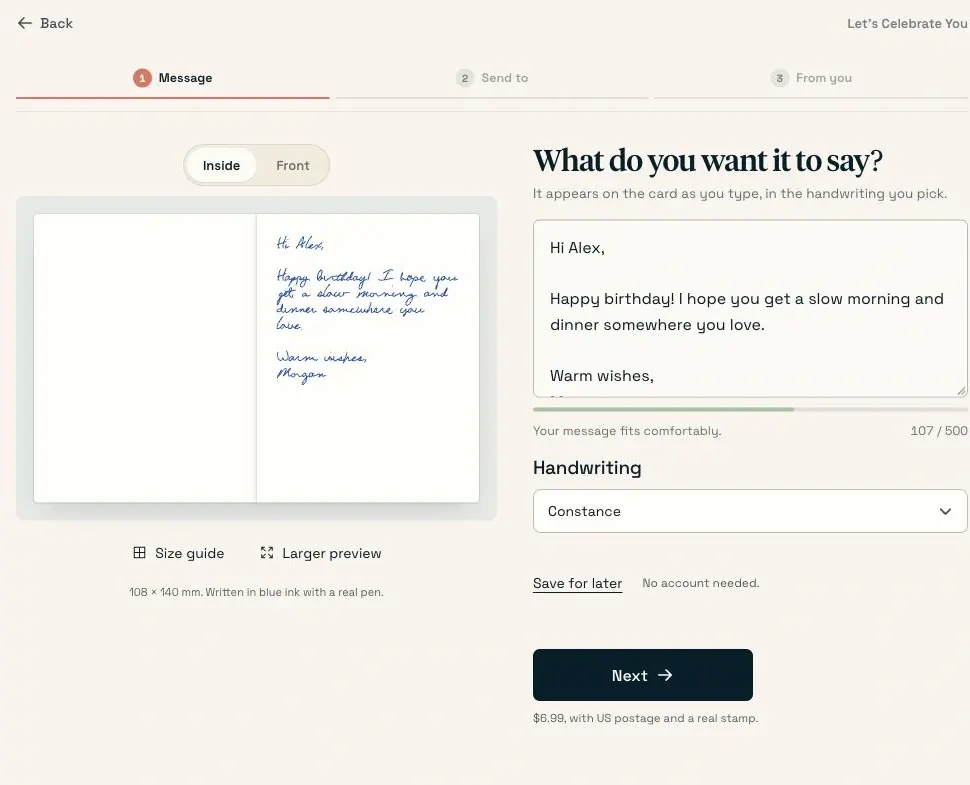
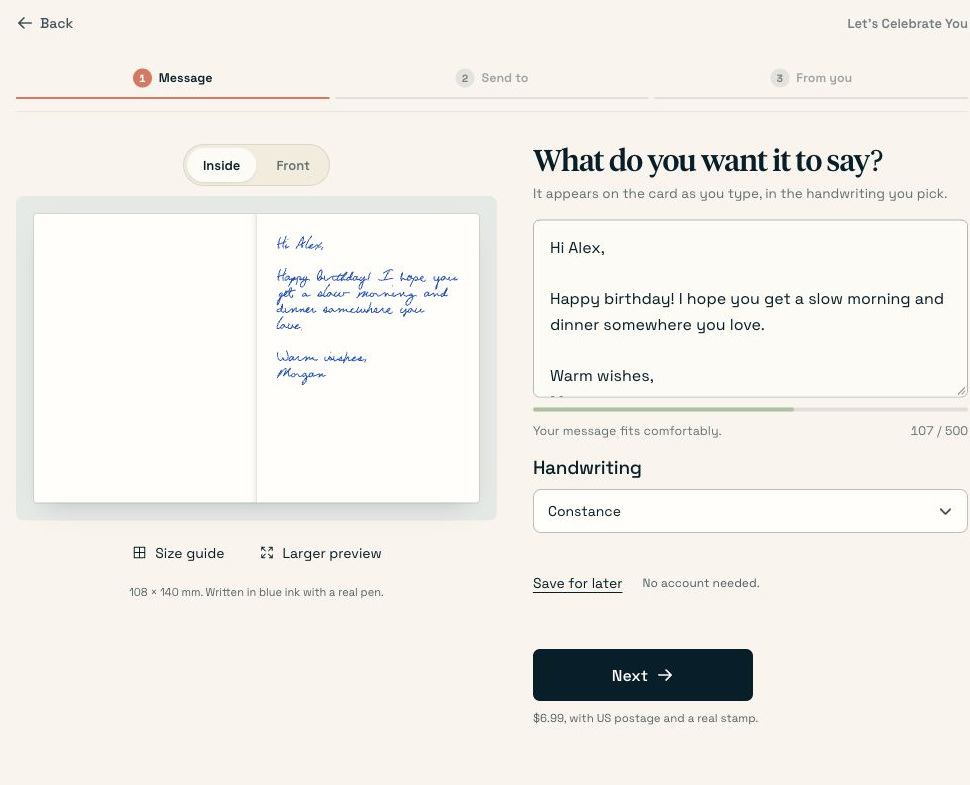
Read the actual words in the preview. The handwriting fits as you type.
For this birthday card, the message is:
Hi Alex,
Happy birthday! I hope you get a slow morning and dinner somewhere you love.
Warm wishes,
Morgan
Keep it to a few sentences. The editor shows a 500-character limit, but the complete note still needs to fit in your chosen handwriting. Wait for the preview to finish before choosing Next. If a note is too long, shorten it or choose another handwriting and check again.
If you need wording, our birthday card messages can help you get started. Change the greeting and sign-off so they sound like you.
4. Add the recipient’s mailing address
At Send to, choose Send to recipient and enter their name and complete address. Include an apartment or unit number when there is one. Check the city, state, and ZIP code before choosing Next.
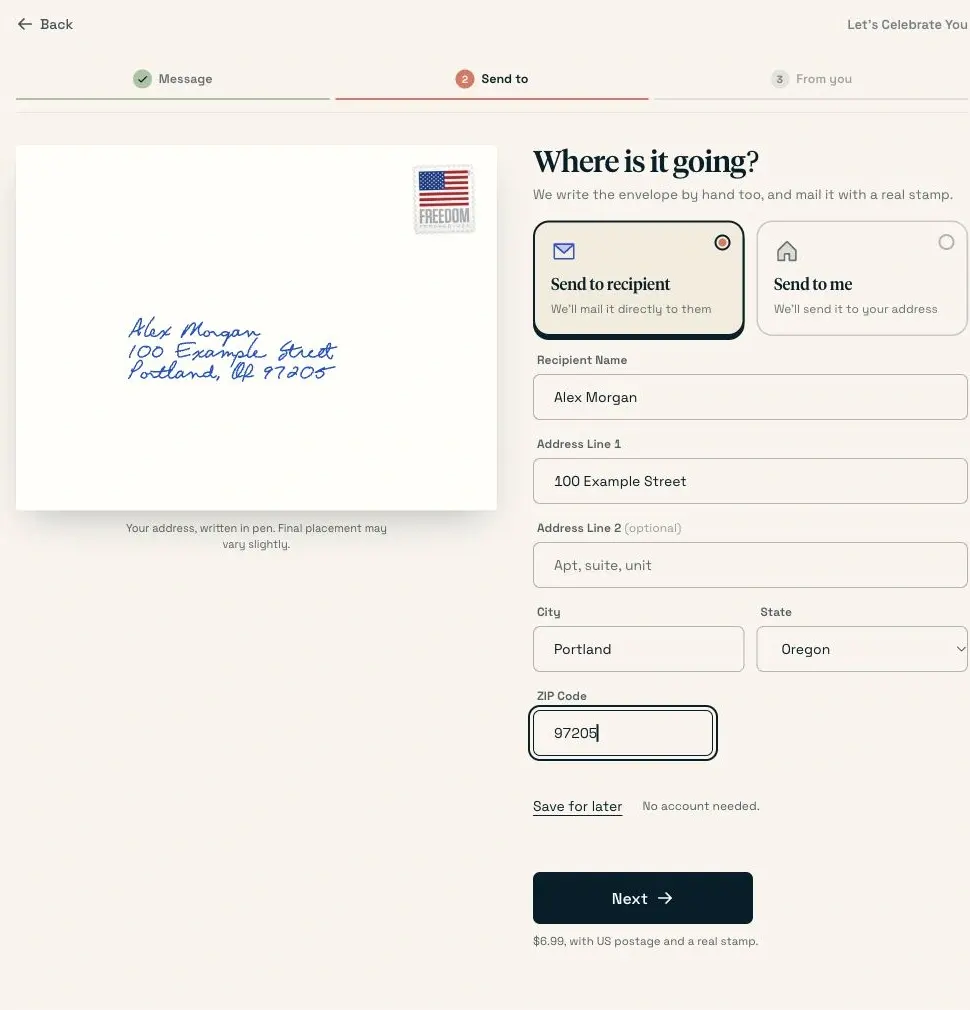
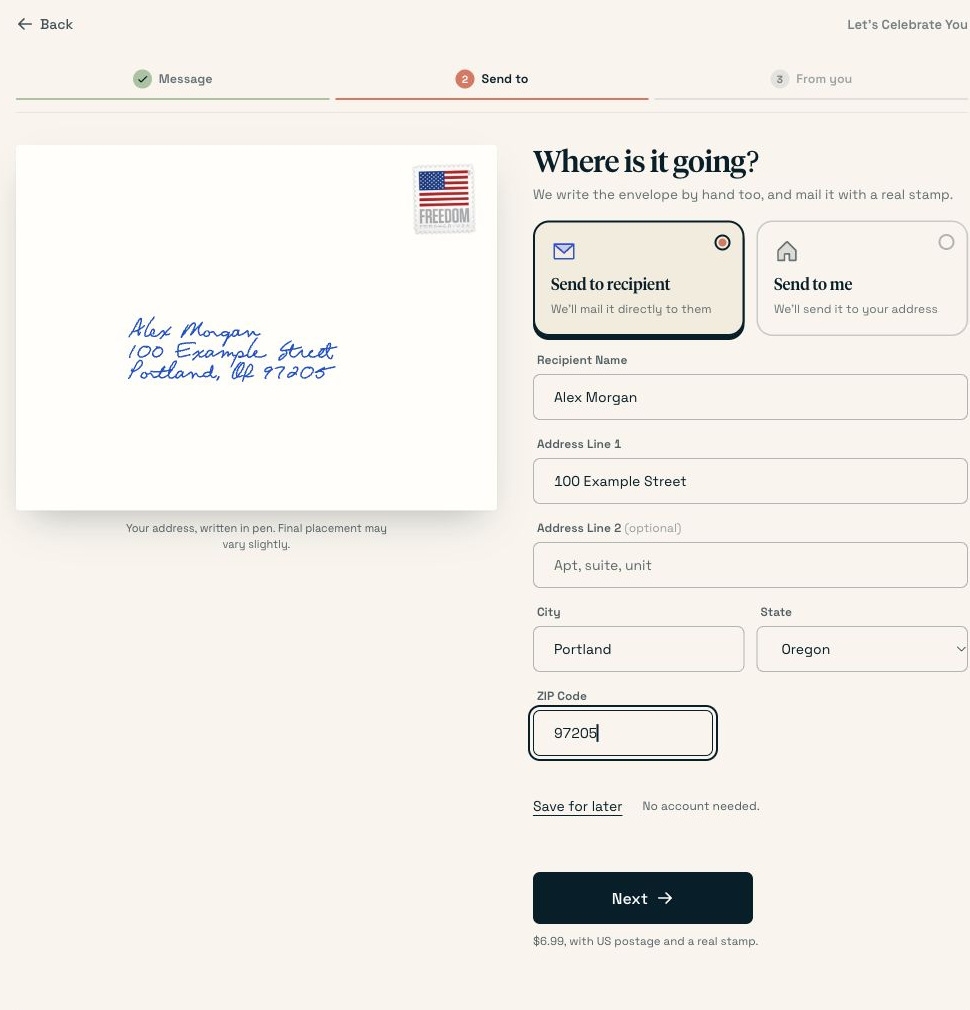
The address on the envelope needs to reach the person you’re writing to.
Choose Send to me if you want the card mailed to your address instead. For a ZIP code you’re unsure about, use the USPS address lookup. It checks the postal address; it doesn’t confirm that the person lives there.
5. Add your return address
At From you, enter your name and return address. Check this separately from the recipient’s address. Then choose Add to cart.
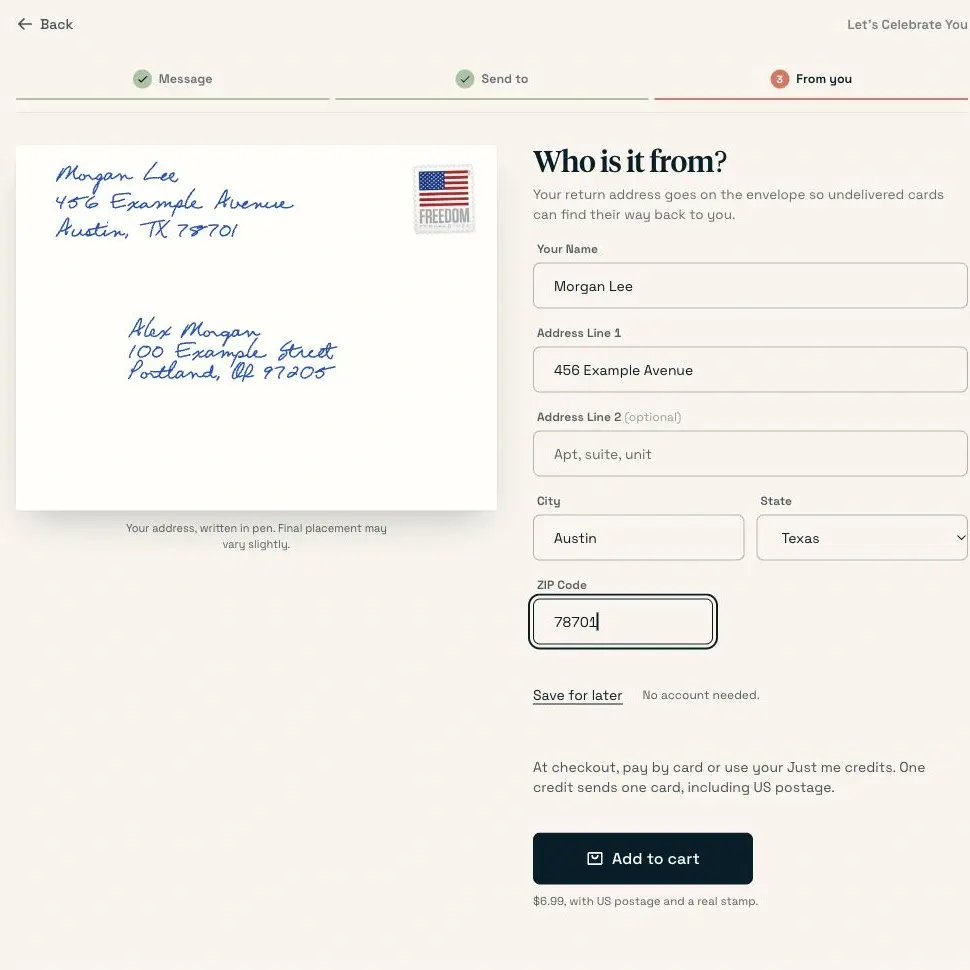
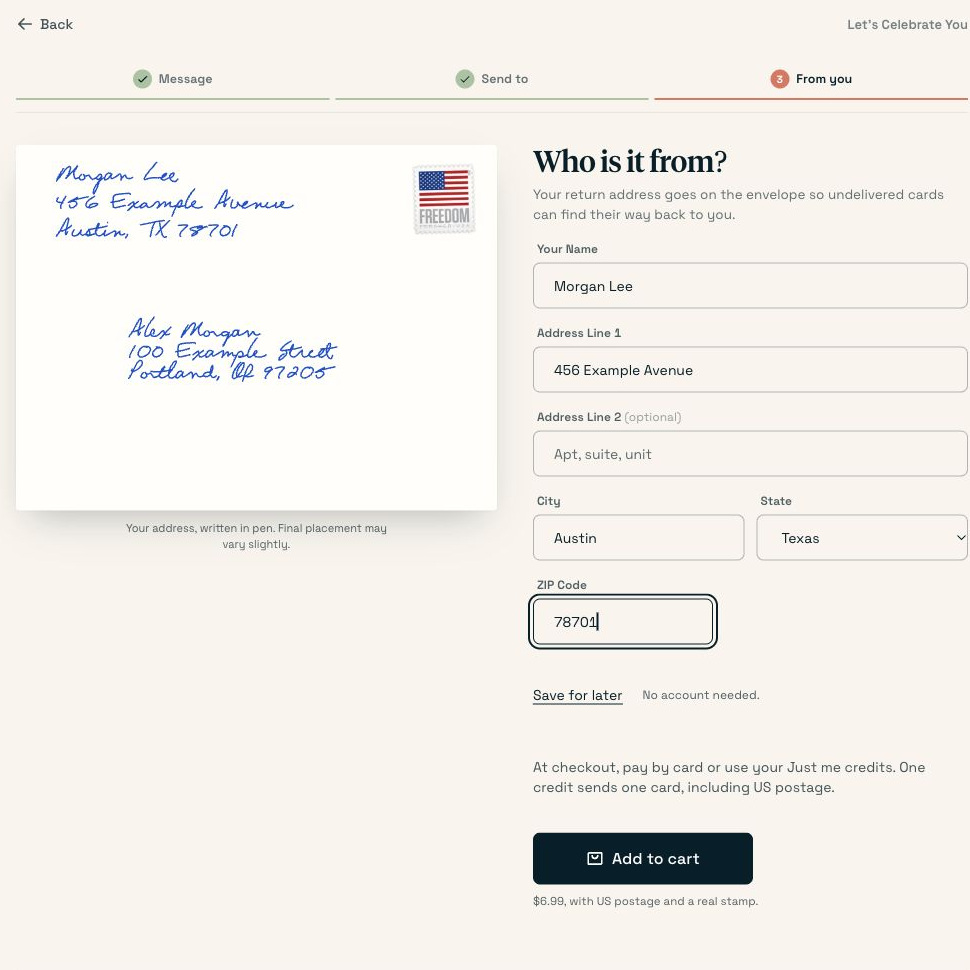
Check both address blocks. Your return address identifies the sender and gives undeliverable mail somewhere to go.
For a client card, use the sender name and return address you want the client to recognize. Put your sign-off inside the message too; the envelope sender is a separate detail.
6. Review the card, envelope, and price
In Your Cart, choose View inside handwriting and Envelope preview to open the proofs. Read the full note, check both addresses, and check the card count and order total. Choose Edit card if anything needs changing.
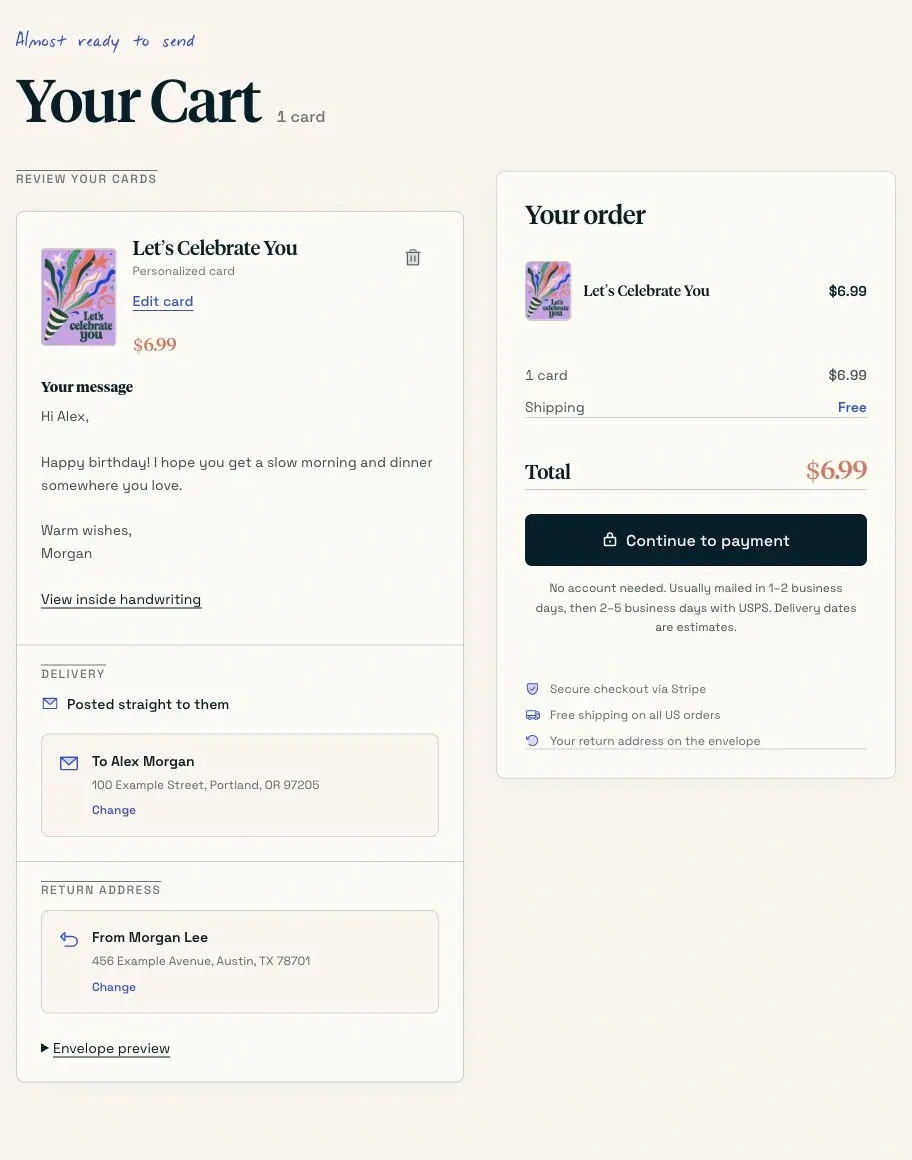
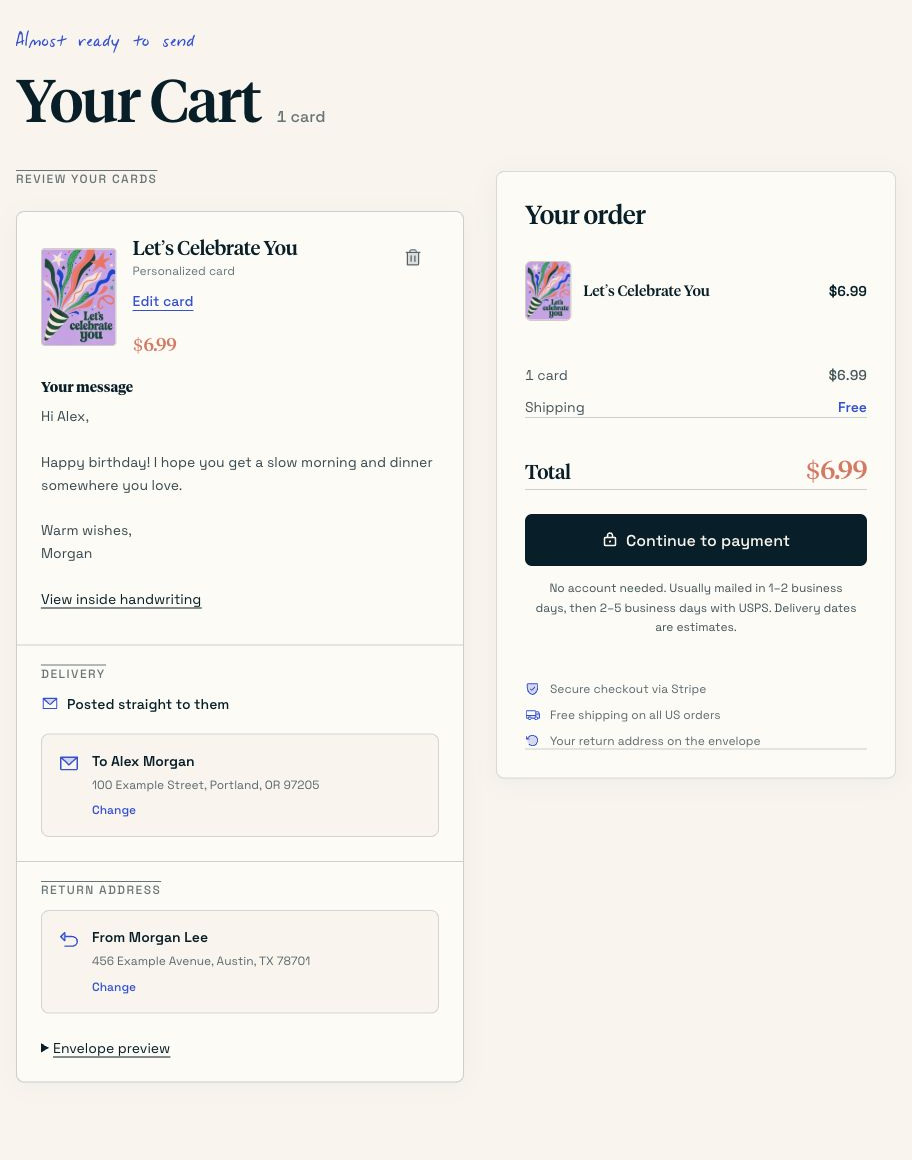
This is the final review before payment. Check the example details against your own order.
Choose Continue to payment when the order is correct, then complete checkout. If your signed-in account offers a credit option, the summary shows that choice and its final action instead.
An ordinary card is usually mailed in 1–2 business days, followed by an estimated 2–5 business days with USPS. Delivery dates are estimates. If you need a card for a future occasion, use the date or mailing setup below and check the arrival window it offers.
How to send handwritten cards to a list
Use this for a group of thank-yous, invitations, neighborhood notes, or other cards that should go out as one mailing. You can use the same message with each person’s first name, or bring a separate message for each person.
A mailing can contain one recipient, so this also works for one card you want to arrive by a future date.
The steps are Recipients → Design → Message → Schedule → Review. Here’s a two-person thank-you mailing from start to final review.
1. Start a mailing from My cards
Open My cards, choose Send to a list, then Start a mailing. At Recipients, choose Import spreadsheet if your people are in Excel or Google Sheets.
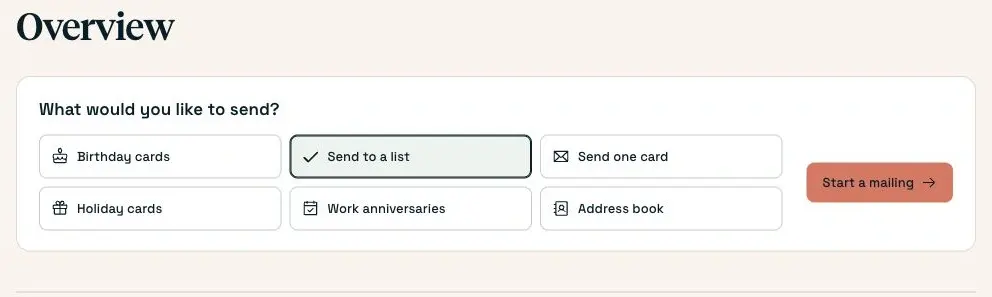
Choose Send to a list for this run. Birthday cards and work anniversaries have their own date setup.
If the people are already in your address book, Select contacts lets you choose them without uploading them again. The steps below show the spreadsheet route.
2. Download the CSV template and fill it in
Under Upload a file, open Need a spreadsheet template?, then choose Download CSV template. Open the downloaded file in Excel or Google Sheets. Its headings give you a place for each part of the mailing address.
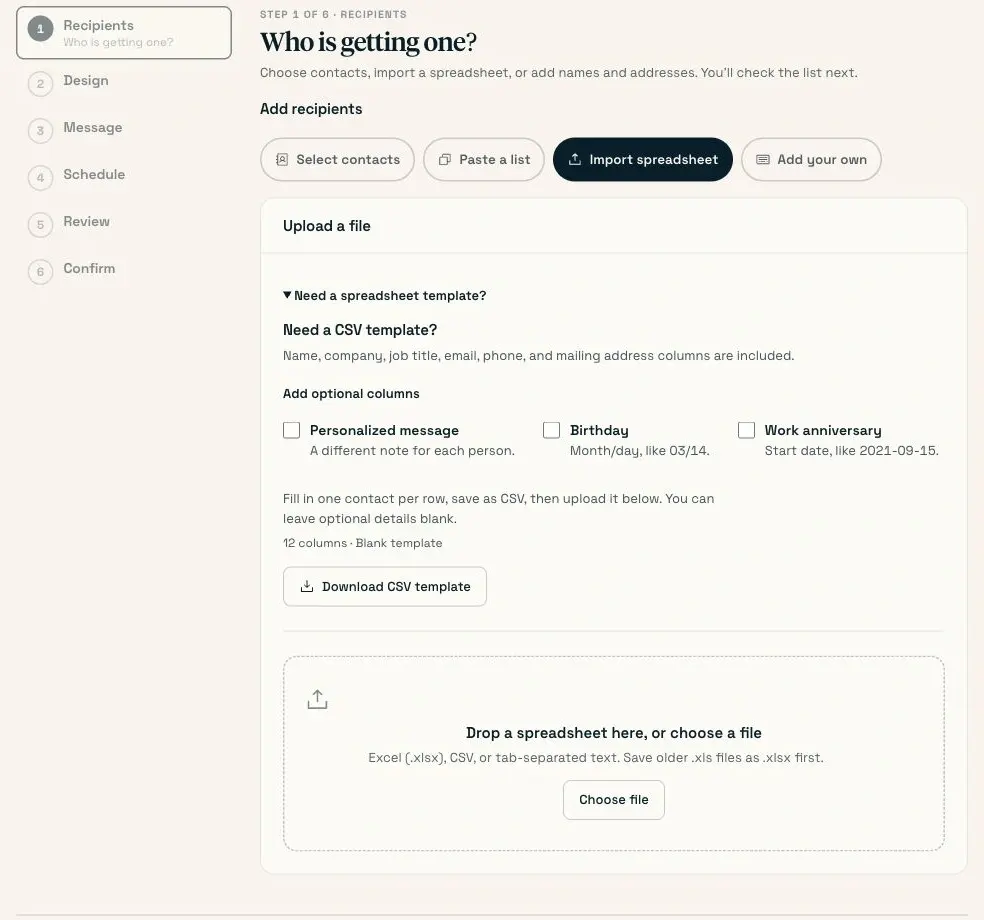
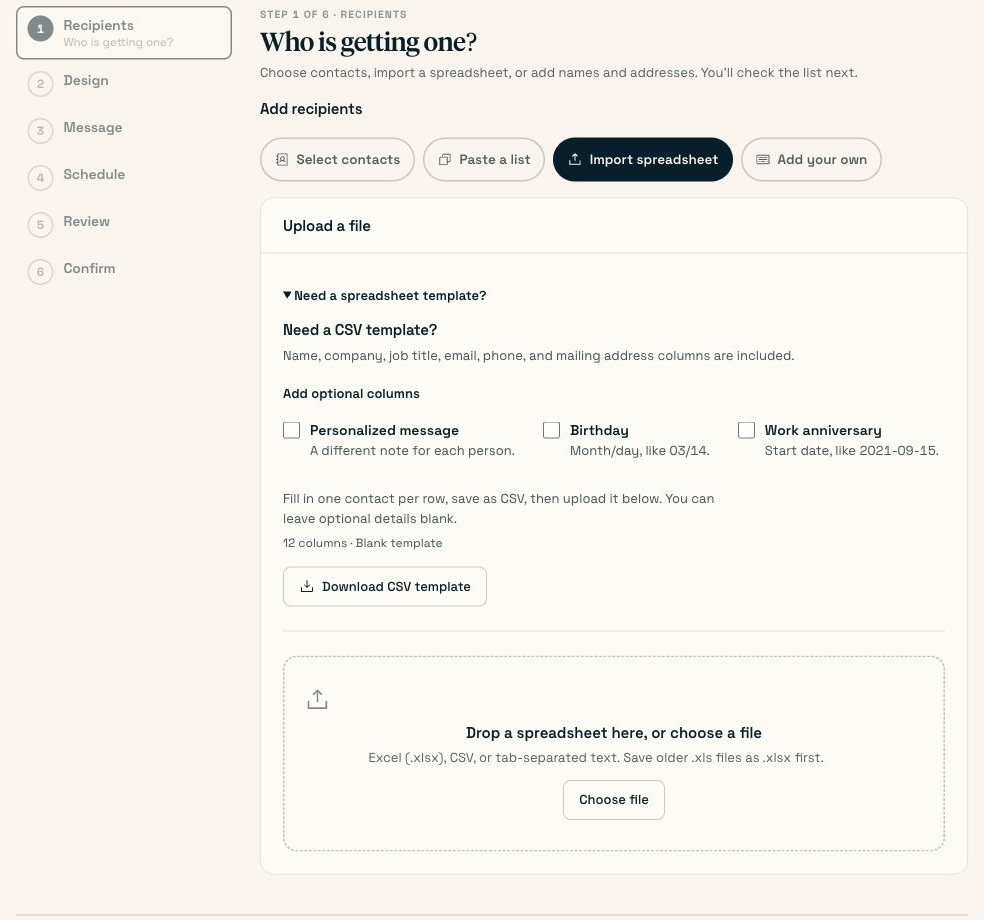
Download the blank template before you prepare your list. The optional columns are there if you need them.
Put one person on each row. Fill in their first and last names, street address, apartment or unit if needed, city, state, and ZIP code. Keep ZIP codes as text so a leading zero stays there. Optional details such as a job title can be left blank.
For the same note with a different greeting, you only need the name and address details. For a different note to every person, check Personalized message before downloading and fill that column for each person. Later, insert that field into the card message.
Save your sheet as CSV, return to the import screen, and choose Choose file. You can also upload an Excel .xlsx file or tab-separated text. Save an older .xls file as .xlsx first.
3. Match each column to the right detail
At Check your spreadsheet, check what the file actually contains. Under What is each column?, match each heading to its contact detail. Your street column belongs with the street address, not the person’s name or company.
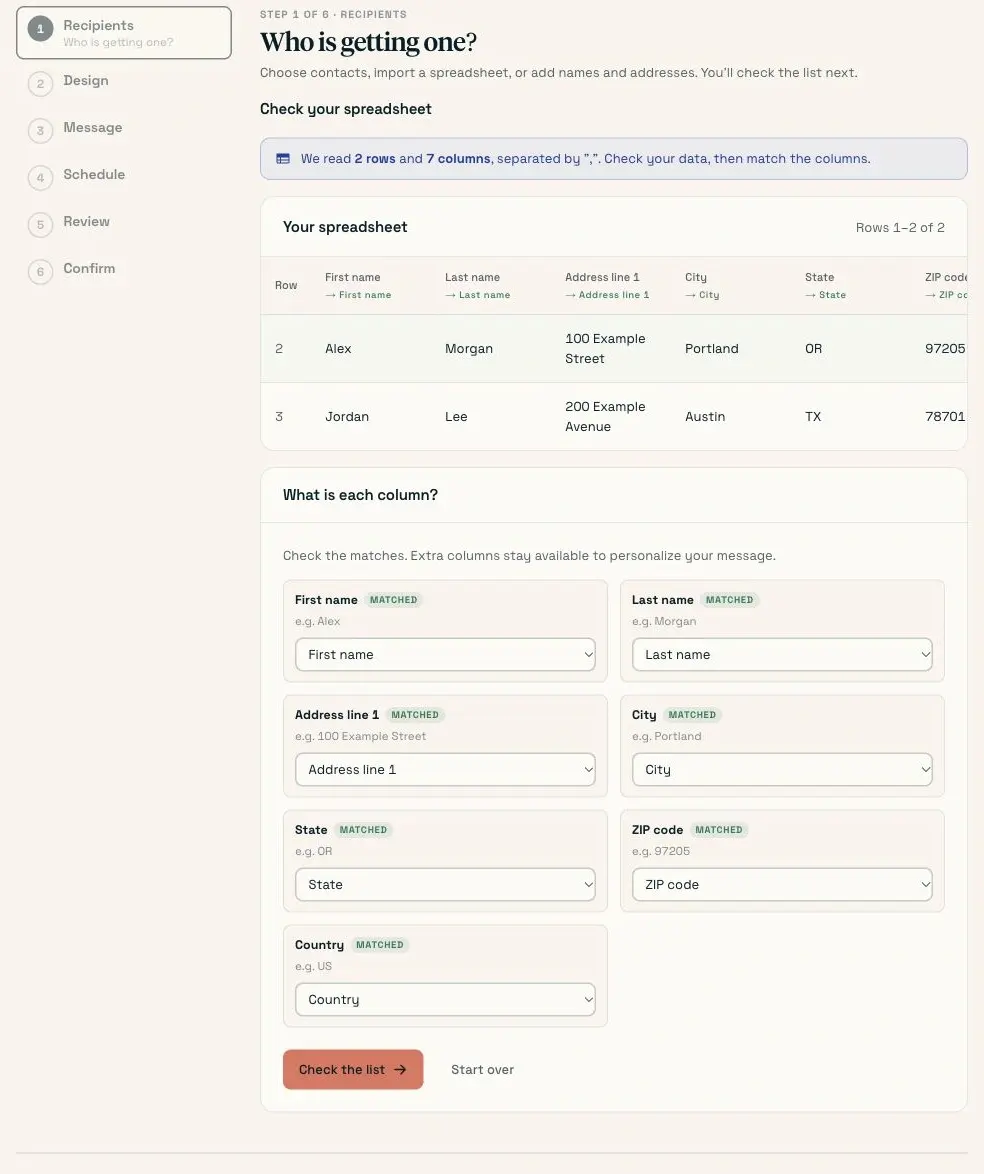
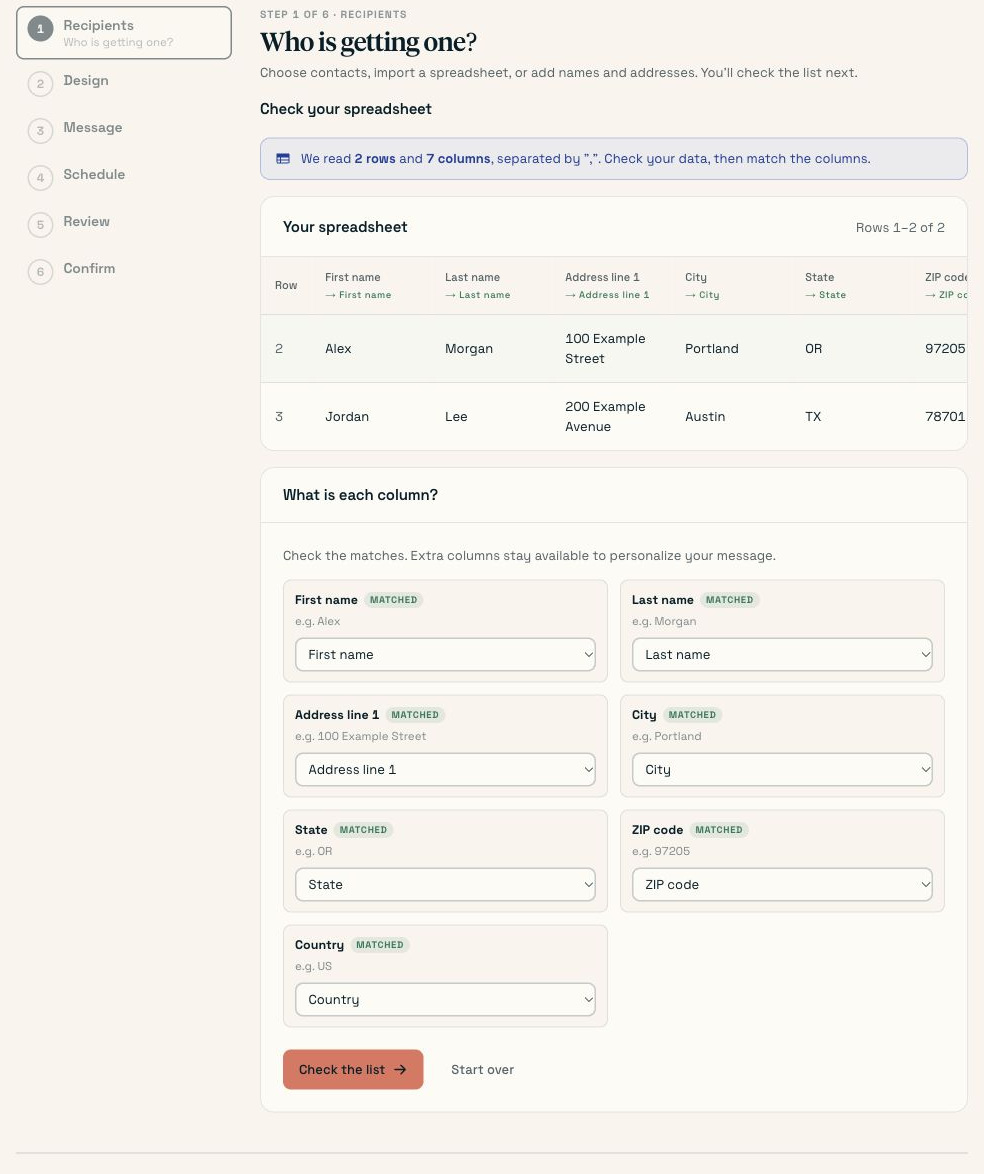
Check the column matches and the sample rows together. A correct heading with the wrong values underneath is still a problem.
Check a complete name and address from one row against the original sheet. If you have apartment numbers, check one of those rows too. When the matches are right, choose Check the list.
4. Review and save the recipients
At Review recipients, check the people the mailing will include. Fix missing details and review duplicate or skipped rows. Compare the count with the number of cards you intended to send.
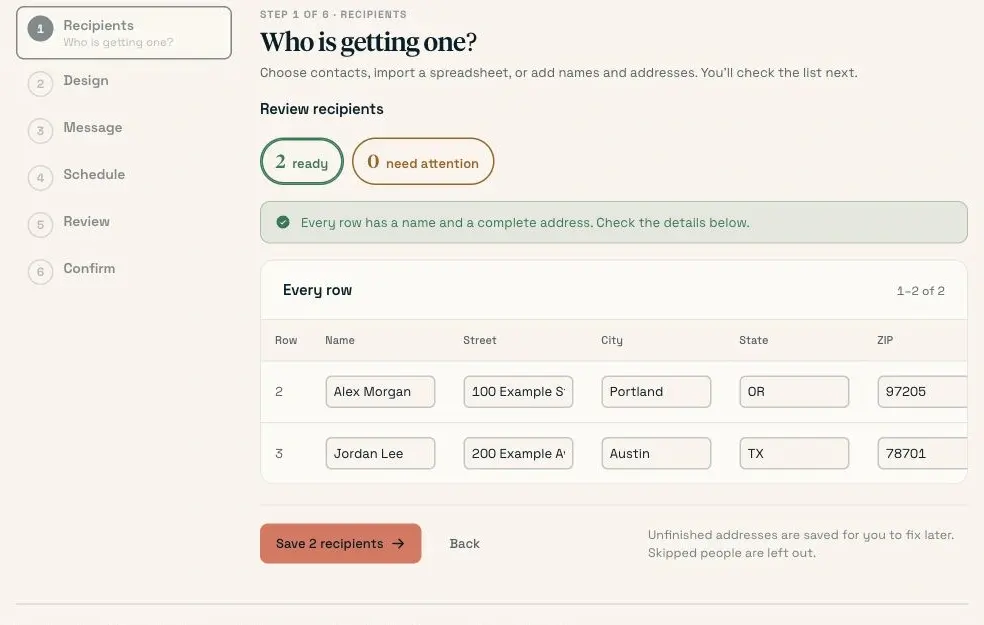
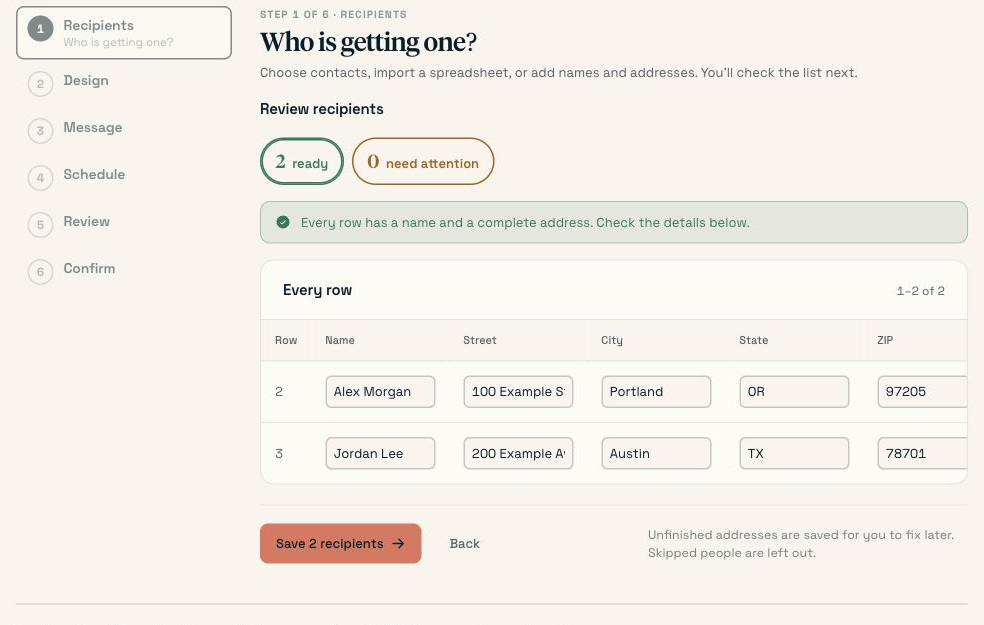
The count should match your intended mailing. Check anyone the importer has flagged before continuing.
Choose Save 2 recipients when the list is correct. These checks catch formatting and missing information; they don’t prove that someone still lives at the address. Use the USPS address lookup when you need to check a postal address.
5. Choose the outside design
At Design, choose a card from the collection. This example uses one thank-you design for everyone in the mailing. Check the selected outside, then continue to Message.
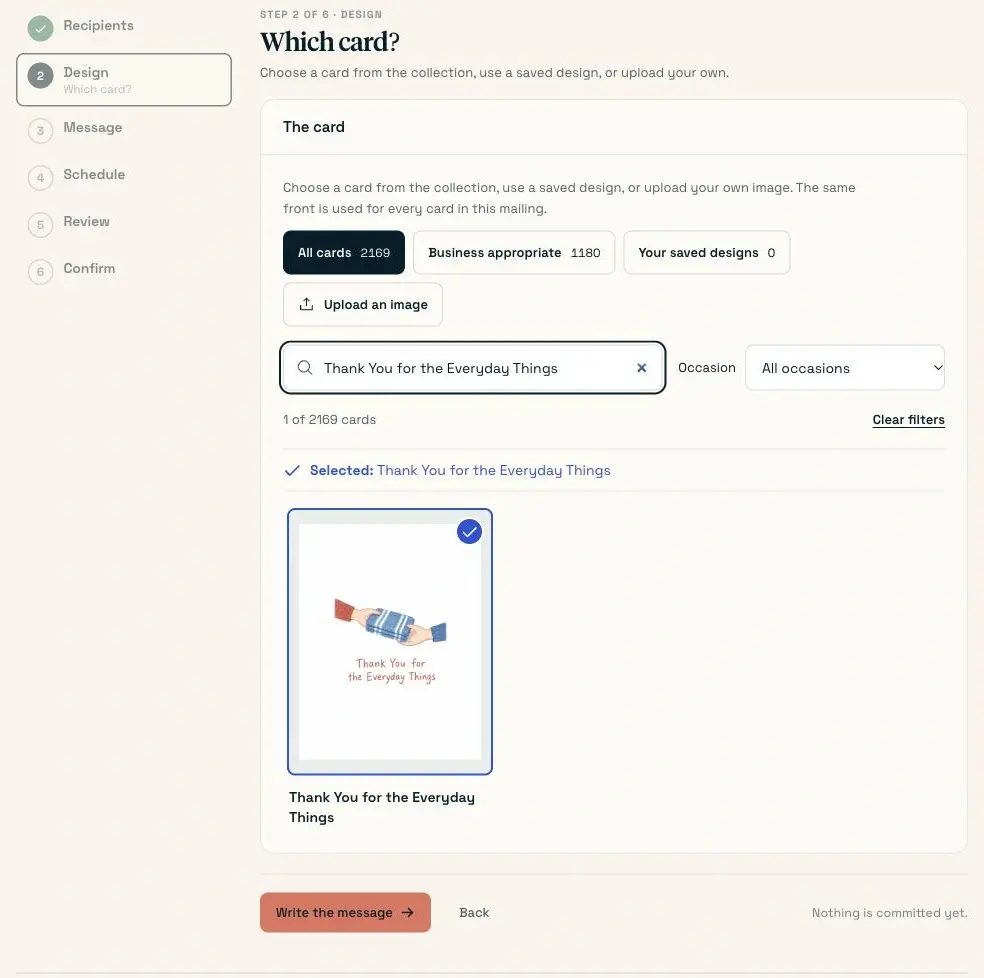
Everyone in this mailing gets the selected outside. Their names and messages can differ inside.
6. Write the message and check every version
Write your note at Message. Use the first-name field where you want the greeting to change. Add your sign-off, choose the handwriting, and check the return address.
For this thank-you mailing:
Hi {{first_name}},
Thank you for working with us this year. It has been a pleasure helping you.
Warm wishes,
Morgan
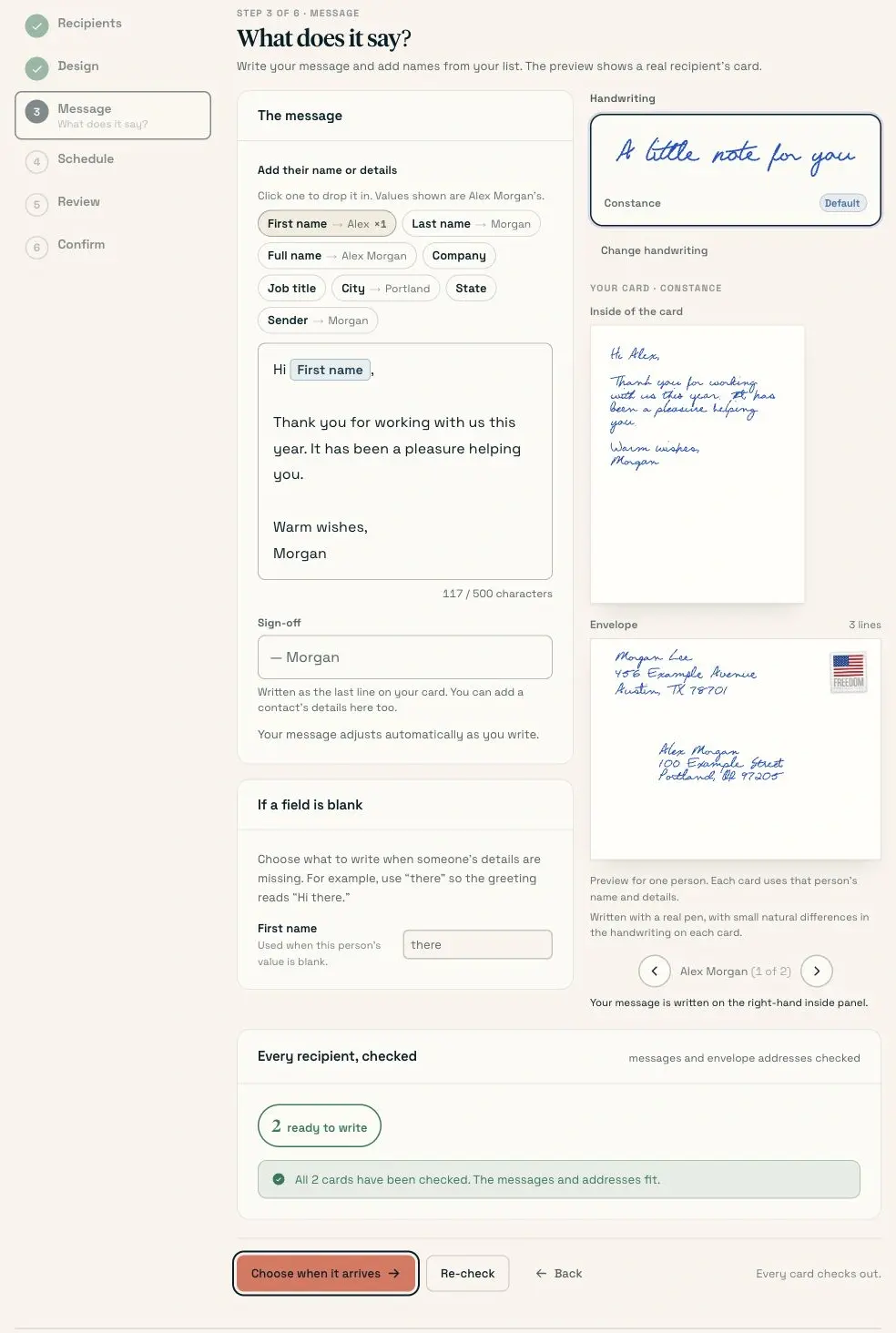
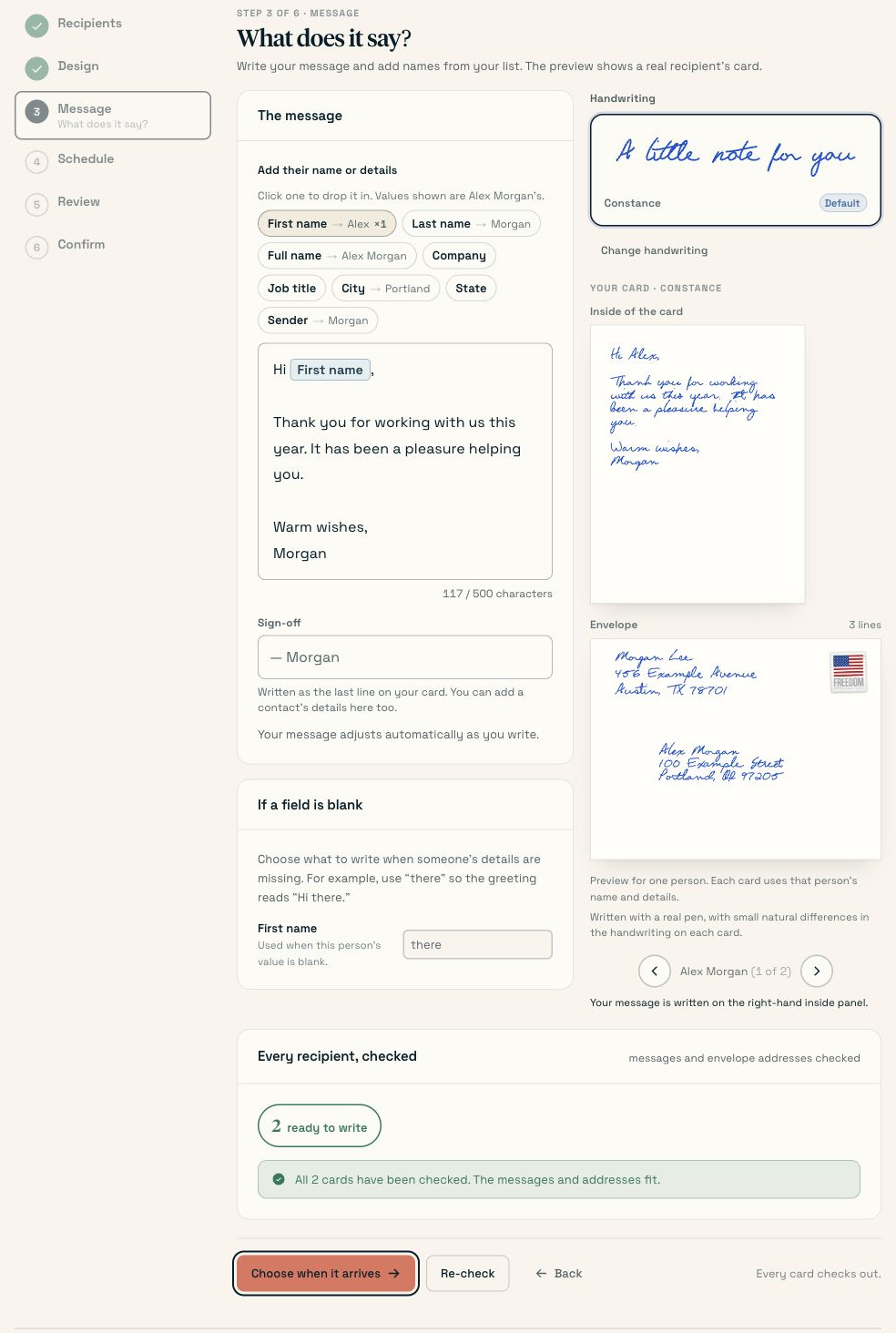
Check the words each person will receive, including the greeting and sign-off.
If you imported a Personalized message column, insert that field where the person’s note should appear. Check whether the spreadsheet text already includes a greeting or sign-off so you don’t write either twice.
Choose Check all 2 cards. Fix any missing fields or messages that don’t fit. Check the preview for a long name as well as a short one, then choose Choose when it arrives when all cards are ready.
7. Choose the arrival date
At Schedule, answer When should they have arrived by? Pick the date by which you want the cards to arrive, or choose Soonest possible. Read the arrival window shown beneath it.
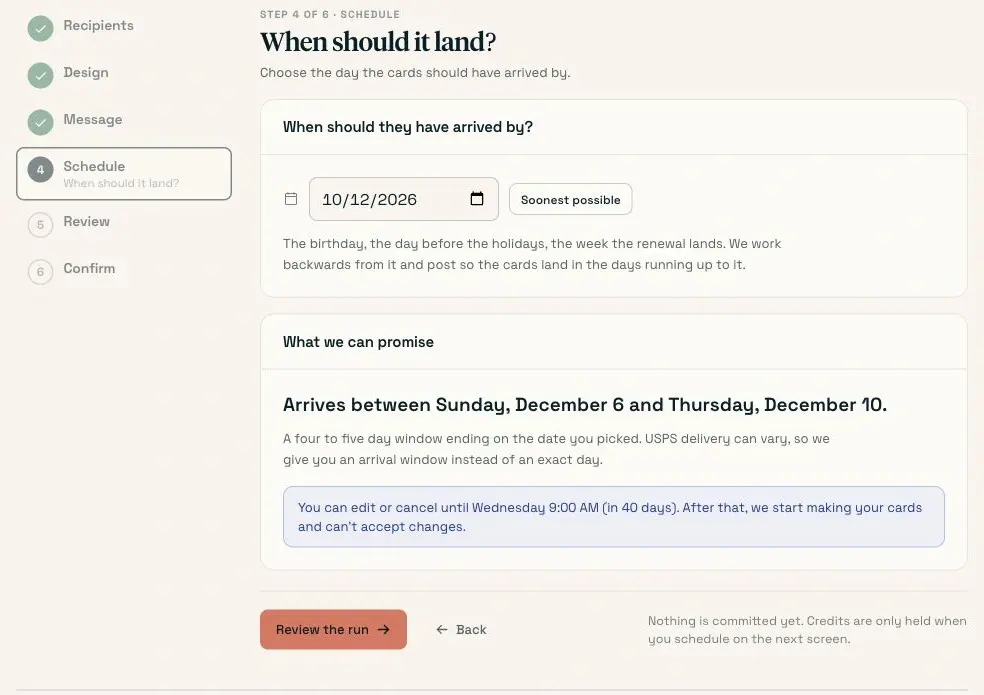
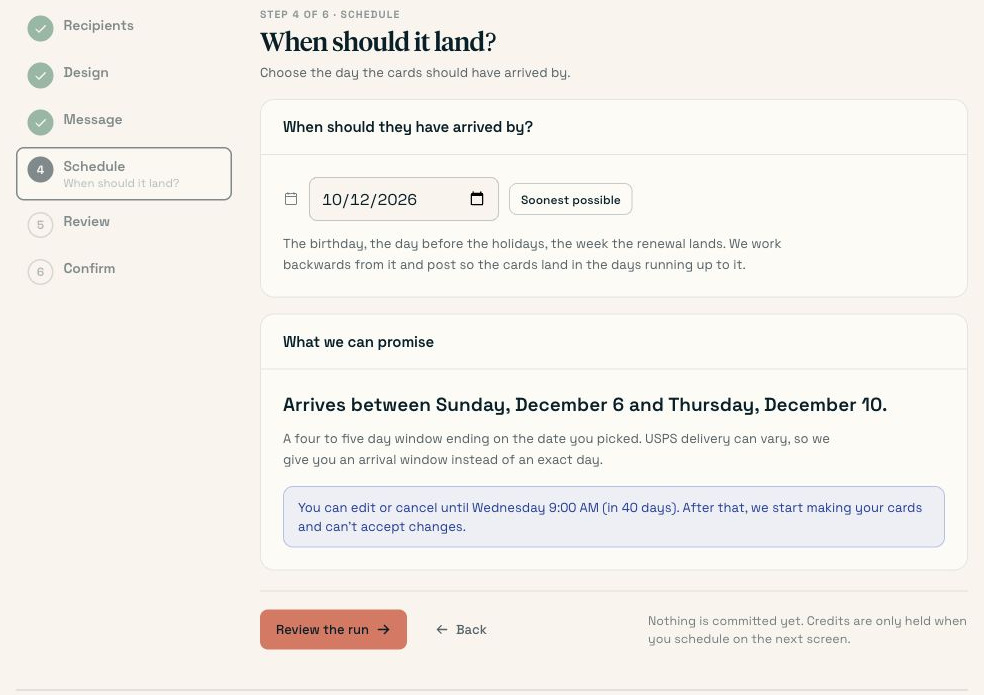
The date is an arrive-by choice. Read the whole arrival window before continuing.
If there isn’t enough time for your chosen date, choose a later one. Choose Review the run once the timing works. Delivery uses an estimated window; it isn’t a promise that every card arrives on the same day.
8. Review the mailing and schedule it
At Review, check the recipient count, selected outside, personalized notes, arrival window, and credits needed. Return to Message if you need another look at the envelope addresses. Fix any error in its relevant step before scheduling.
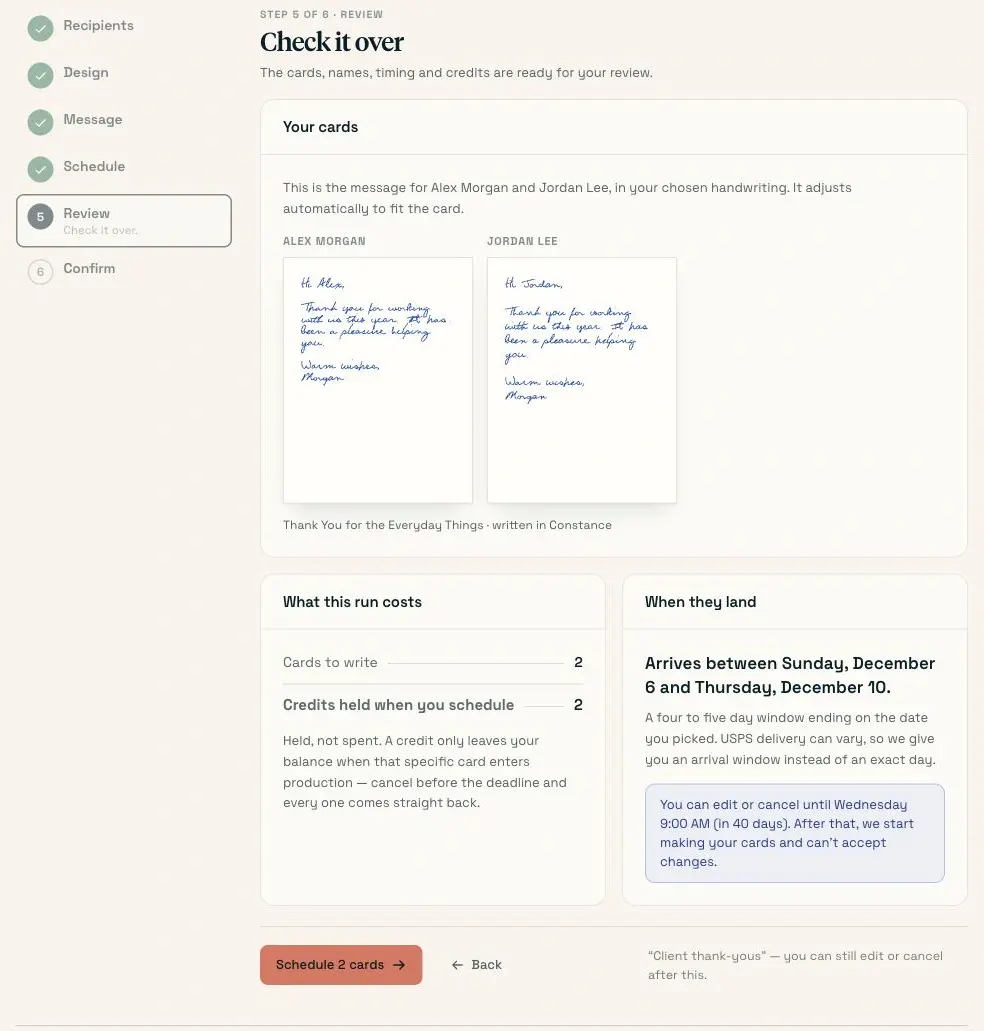
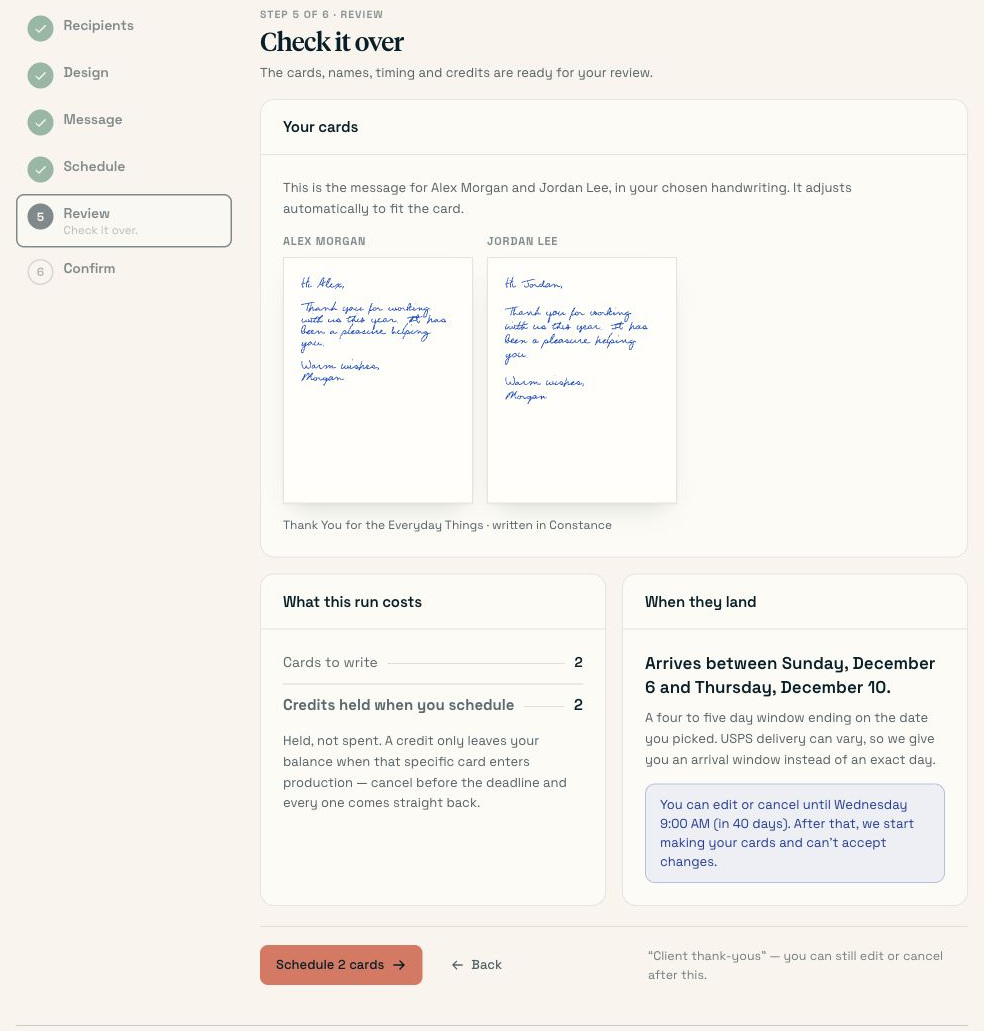
This mailing should contain the people, card, and message you checked in the previous steps.
Choose Schedule 2 cards when the mailing is correct. A shared team space may show Send for approval instead. Scheduling holds the credits for this run.
This is one mailing. To send cards each year for individual birthdays or anniversaries, use the date sections below. The mailing setup guide has more detail about managing a mailing.
How to set up automatic birthday cards
Use this when each person should receive a card for their own birthday each year. You’ll save their birthdays and mailing addresses, choose the card and message once, then turn on scheduled sending.
1. Start birthday cards and choose the people
From My cards, choose Birthday cards, then Set up birthday cards. At Who, give the setup a recognizable name, such as “Client birthdays.”
Choose Create a list for a new group, enter its name, and choose Create list. If your people are already saved, choose Use a saved list and select the list instead.
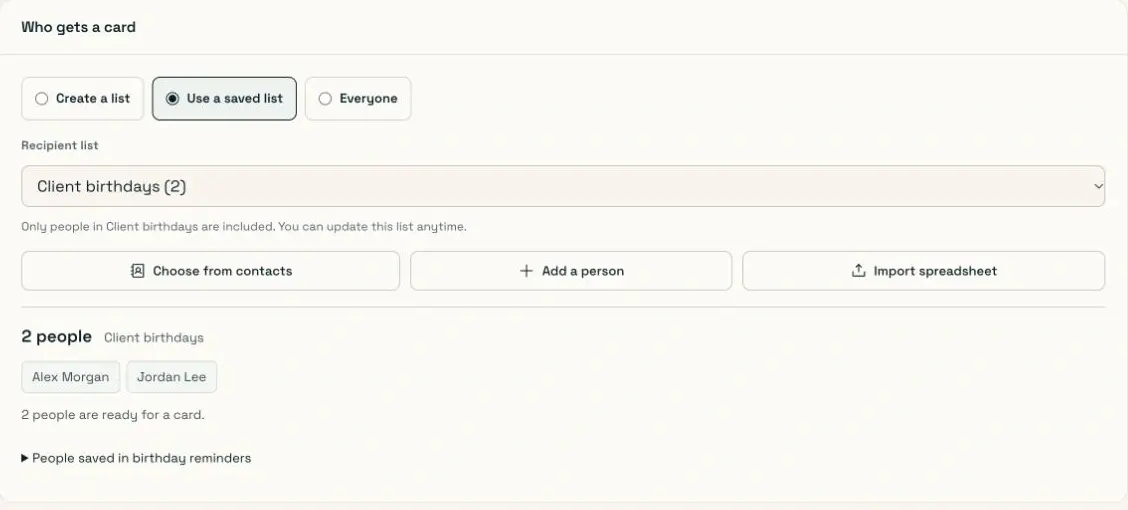
Use a specific list when that is the group you want to receive birthday cards.
Everyone includes all contacts with the required birthday and mailing address, including people you add later. Choose it only if you want that wider group.
2. Import the birthdays with the mailing addresses
Choose Import spreadsheet for your selected list. Open Need a spreadsheet template?, check Birthday, and choose Download CSV template. Fill in each person’s name, mailing address, and birthday on the same row.
The Birthday column uses month/day, such as 11/14 for November 14. You don’t need someone’s birth year for a birthday greeting. Keep the birthday in its own column; don’t put it in the message or address.
Upload the file, check the rows at Check file, then match the birthday column to Birthday at Match columns. Check the names and mailing address columns too.
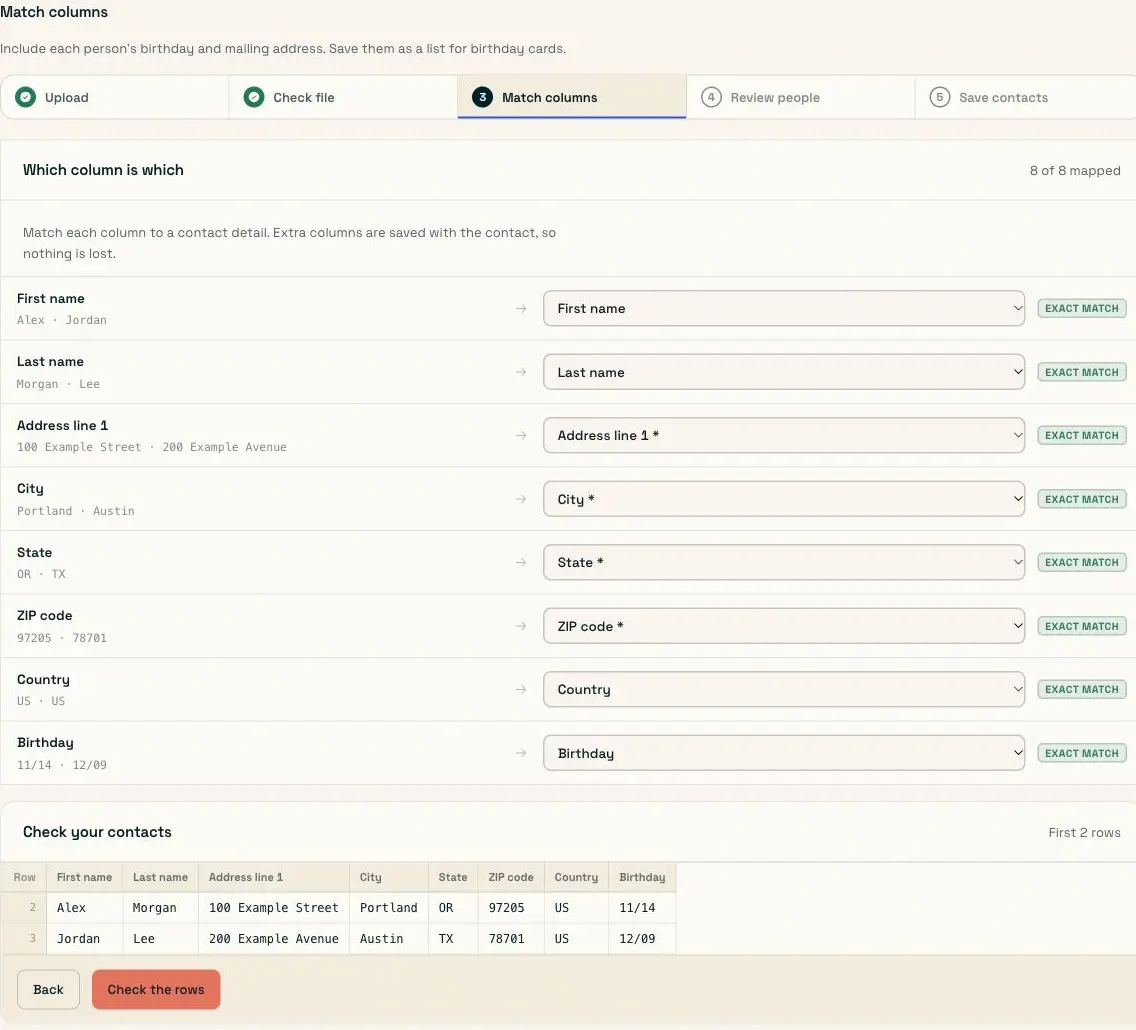
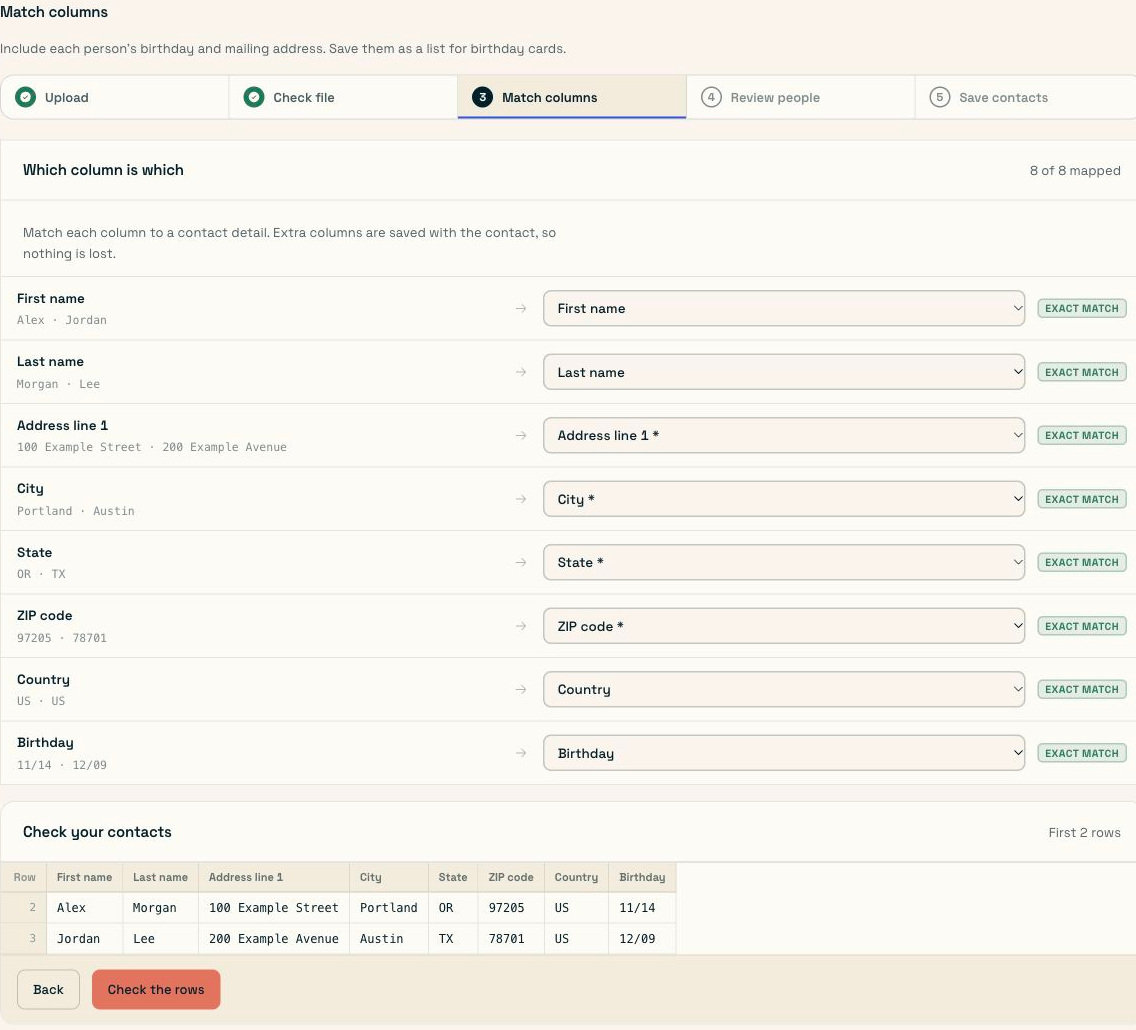
Each birthday must stay attached to the right person and mailing address.
Choose Check the rows, fix any issues at Review people, and continue to Save contacts. Save the checked people to the list you selected for these cards. Return to Who and check how many people are ready, then choose Pick the card.
Use dates your clients have chosen to share with you. If a person is missing a birthday or a mailing address, finish that contact before expecting their card to send.
3. Pick the birthday card
At Card, choose the outside that everyone in this birthday setup will receive. You can search the collection and inspect the design before selecting it.
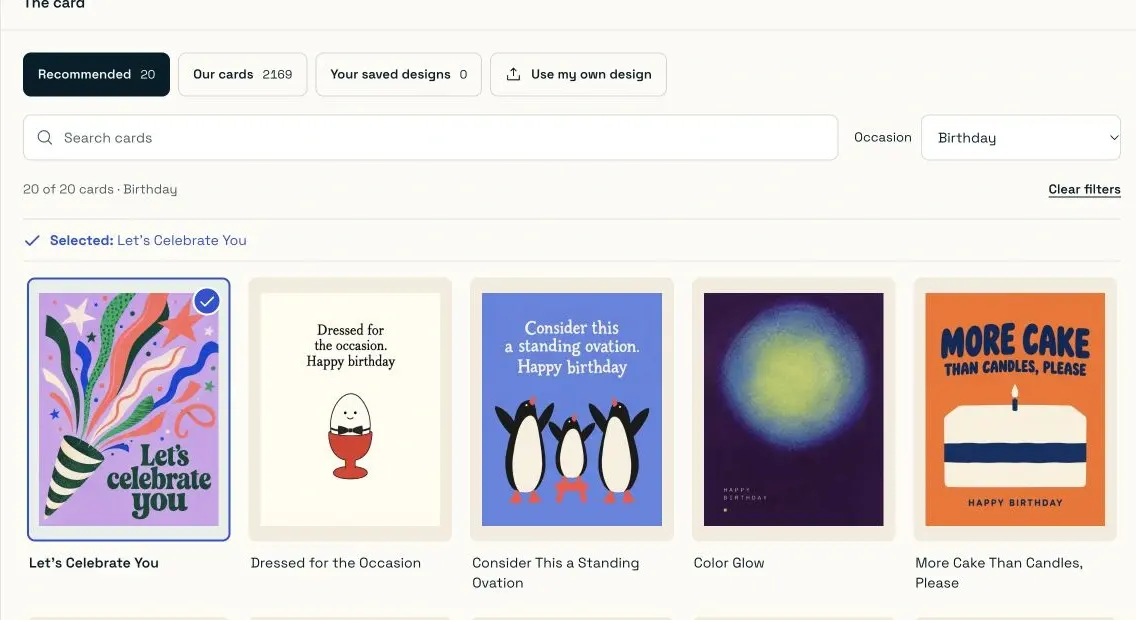
Choose a birthday design that suits the whole list. Separate groups can have their own setup.
Choose Write the message to continue.
4. Write and preview the birthday note
At Message, write the birthday greeting, insert the first-name field, and add your sign-off. Choose the handwriting and check the return address.
Hi {{first_name}},
Happy birthday! I hope you get a slow morning and dinner somewhere you love.
Warm wishes,
Morgan
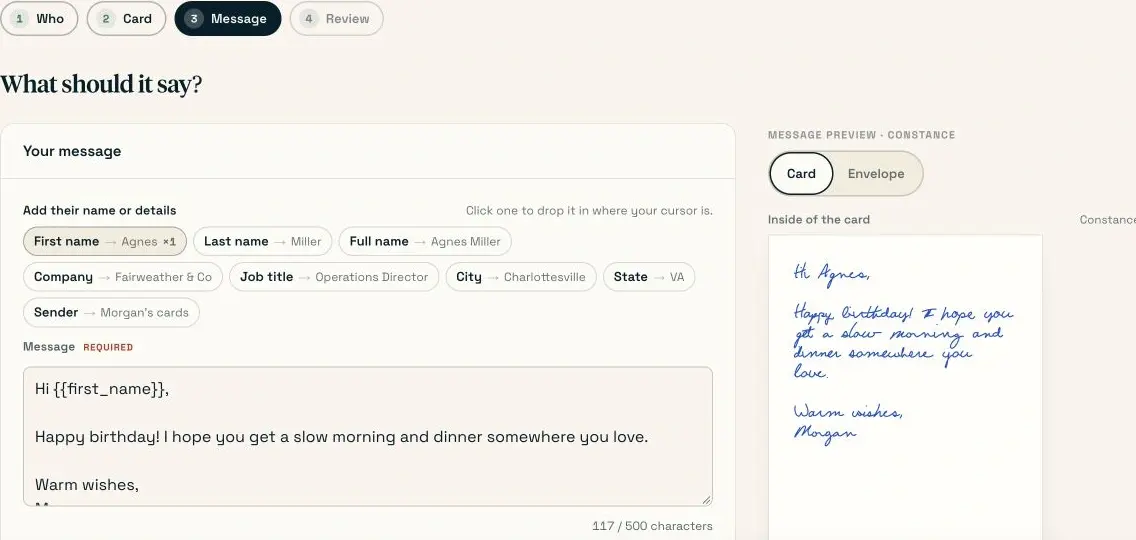
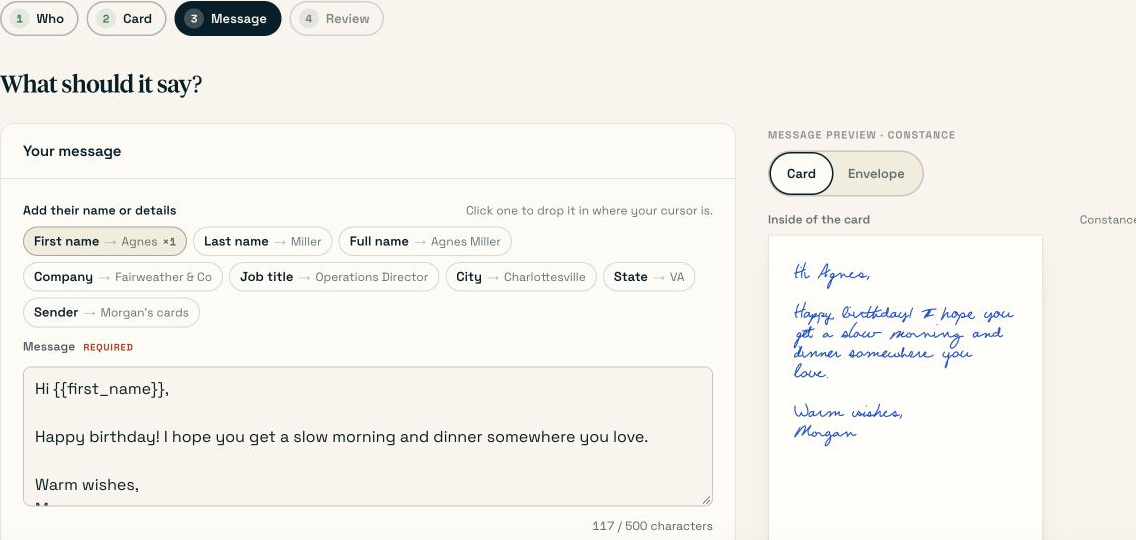
The first-name field changes for each person. The rest of this birthday greeting stays the same.
Read the preview as a complete card. Check any fallback text for missing names and make sure it still sounds natural. Choose Review your cards when the card and envelope are ready. Our birthday card messages can help if you need a different tone.
5. Check the review and turn on birthday cards
At Review, check the selected people, birthday timing, outside design, complete note, handwriting, and return address. Check the credit coverage for upcoming cards too. To set a yearly ceiling, open Optional card limit and enter Maximum cards per year. Leave it blank if you don’t want a limit.
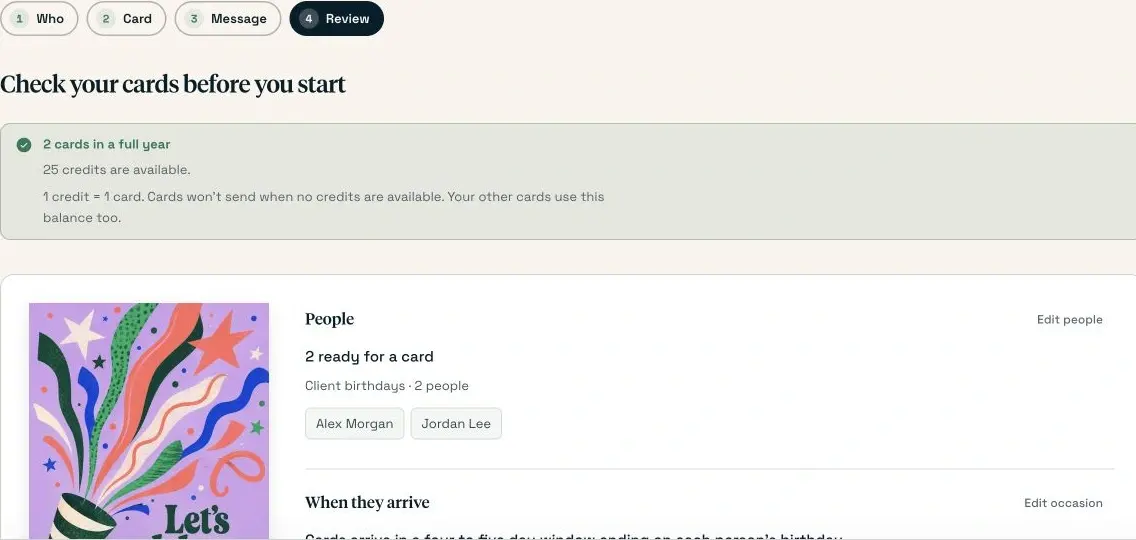
Check the list and credit coverage as well as the card itself.
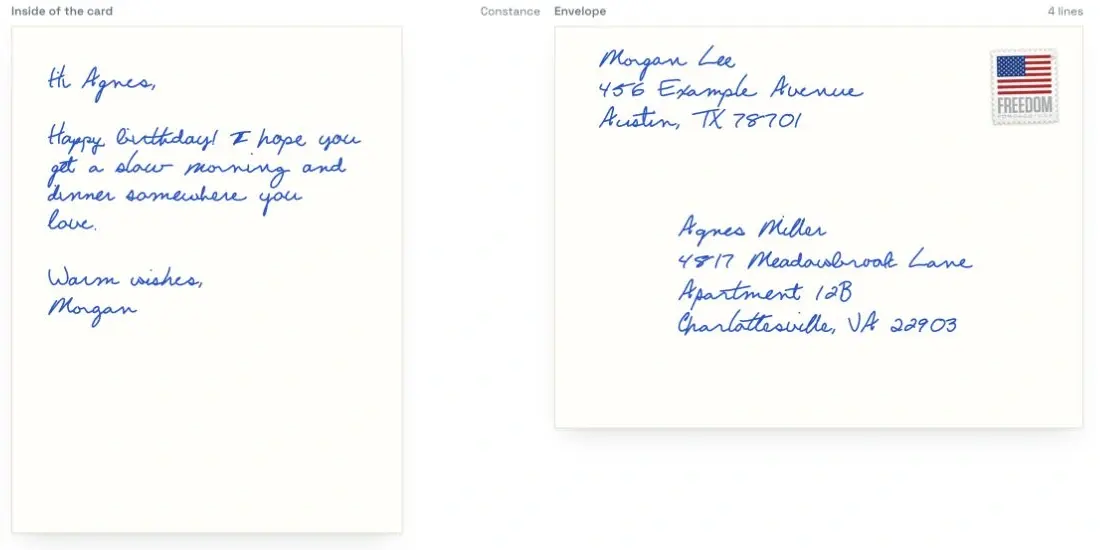
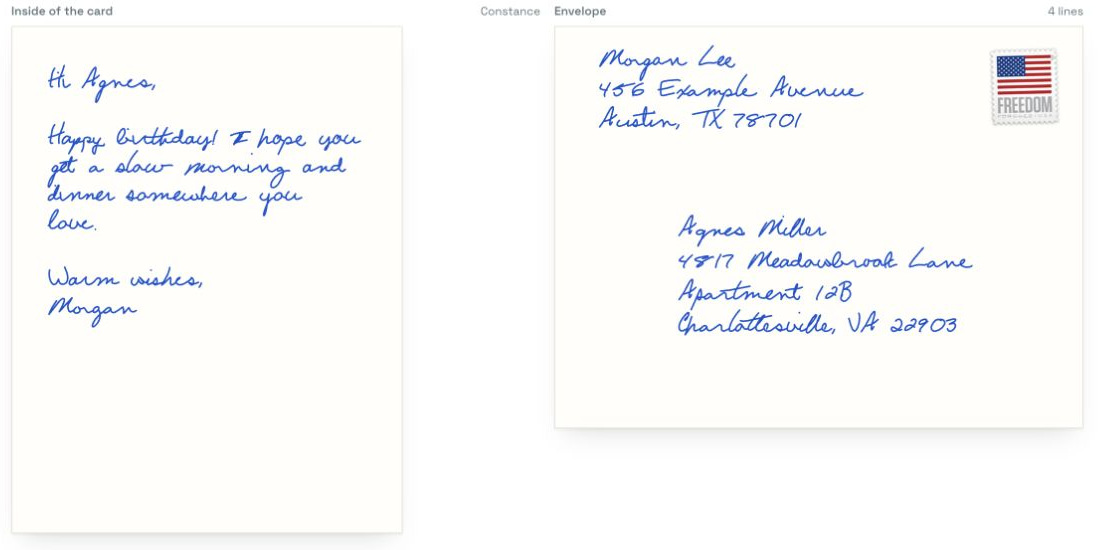
Read the complete sample note and both addresses. The proof is labeled as a sample.
Choose Start scheduled sending when everything is right. This turns on future birthday cards; it doesn’t mail the whole list immediately. Cards are prepared for eligible upcoming birthdays using the arrival window shown in the setup.
Keep enough credits for upcoming cards, and update the list when someone’s address changes or they should stop receiving cards. See the birthday setup guide for more about saved dates.
How to send work anniversary cards automatically
Work anniversaries need a separate date from birthdays: the day the person started work, including the year. A birthday column won’t tell Scribble Cards when someone joined your team.
1. Start work anniversaries and choose the people
Open My cards, choose Work anniversaries, then Set up anniversary cards. At Who, name the setup and choose Create a list or Use a saved list. For a new list, enter its name and choose Create list.
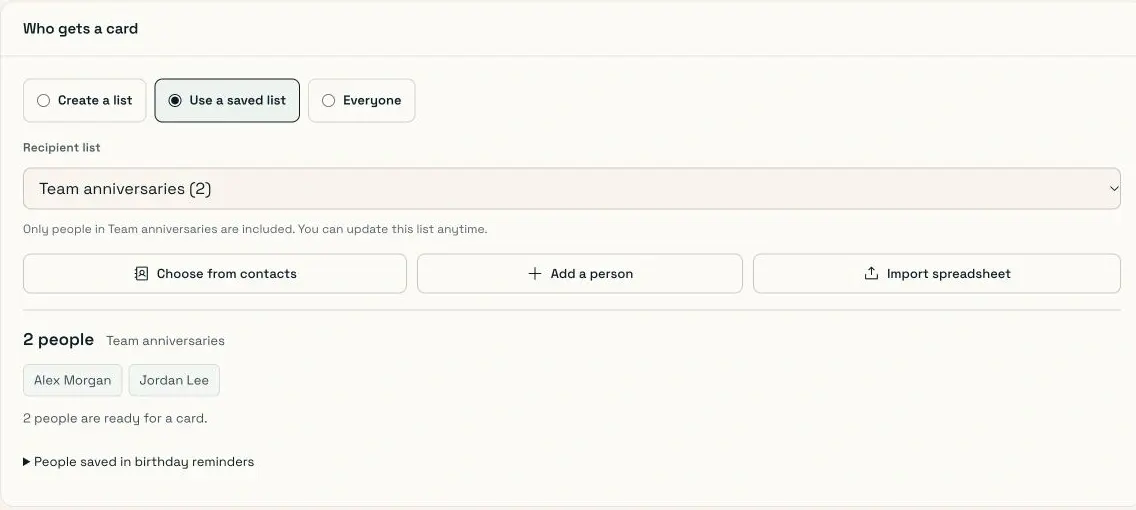
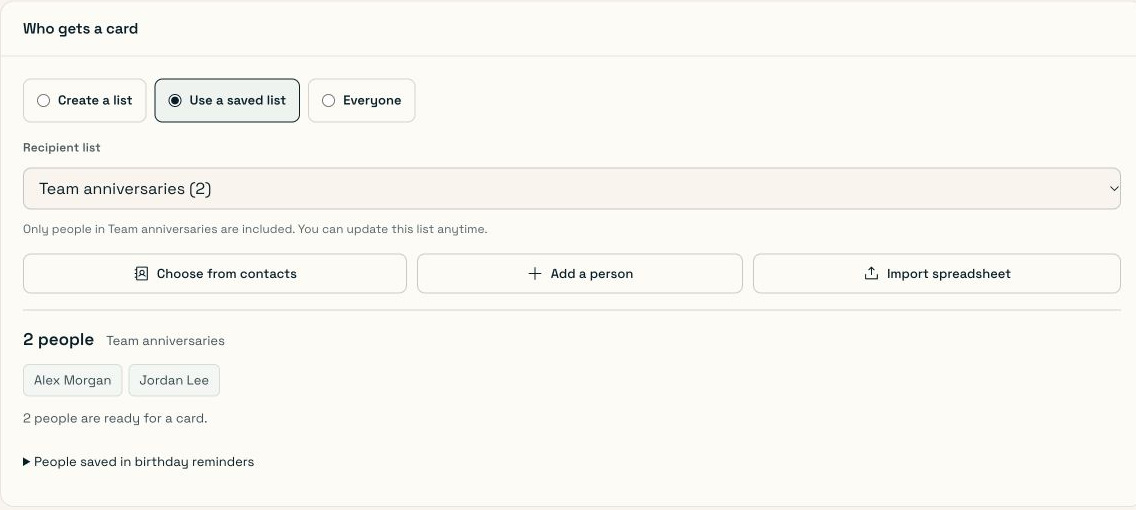
This setup reads the Work anniversary field, separate from each person’s Birthday field.
Choose Import spreadsheet for your selected list. If everyone is already saved with a start date and mailing address, check the ready count and continue to the card instead.
2. Import a separate Work anniversary date
Open Need a spreadsheet template?, check Work anniversary, then choose Download CSV template. Fill in one person per row with their mailing address and full employment start date.
Use YYYY-MM-DD format. For someone who joined on December 10, 2021, enter 2021-12-10. Keep that original date in the sheet; don’t replace the year with the current year.
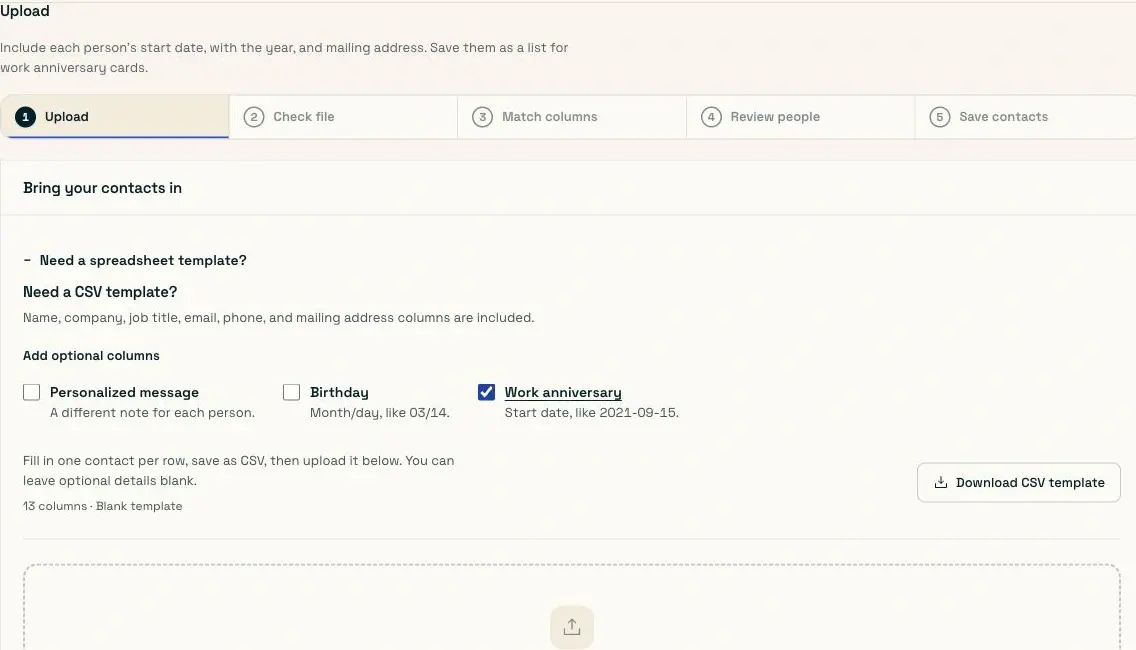
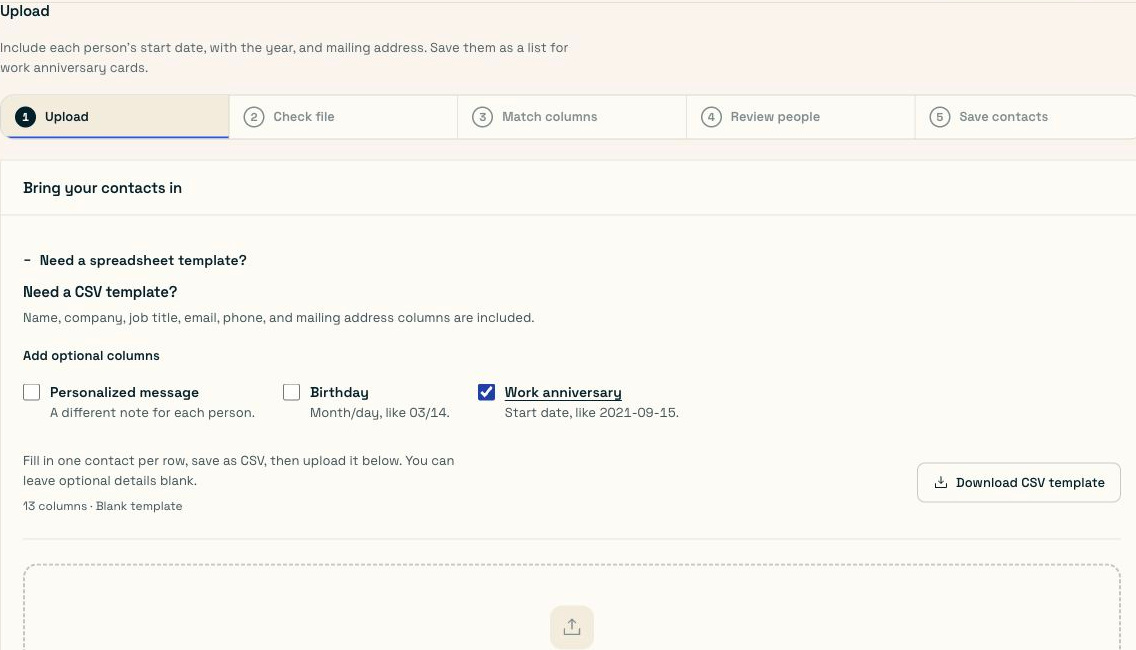
Birthday is month/day. Work anniversary is the full start date, including the year.
You can have both columns in the same contact sheet. Upload the file, check it, and match the start-date column to Work anniversary.
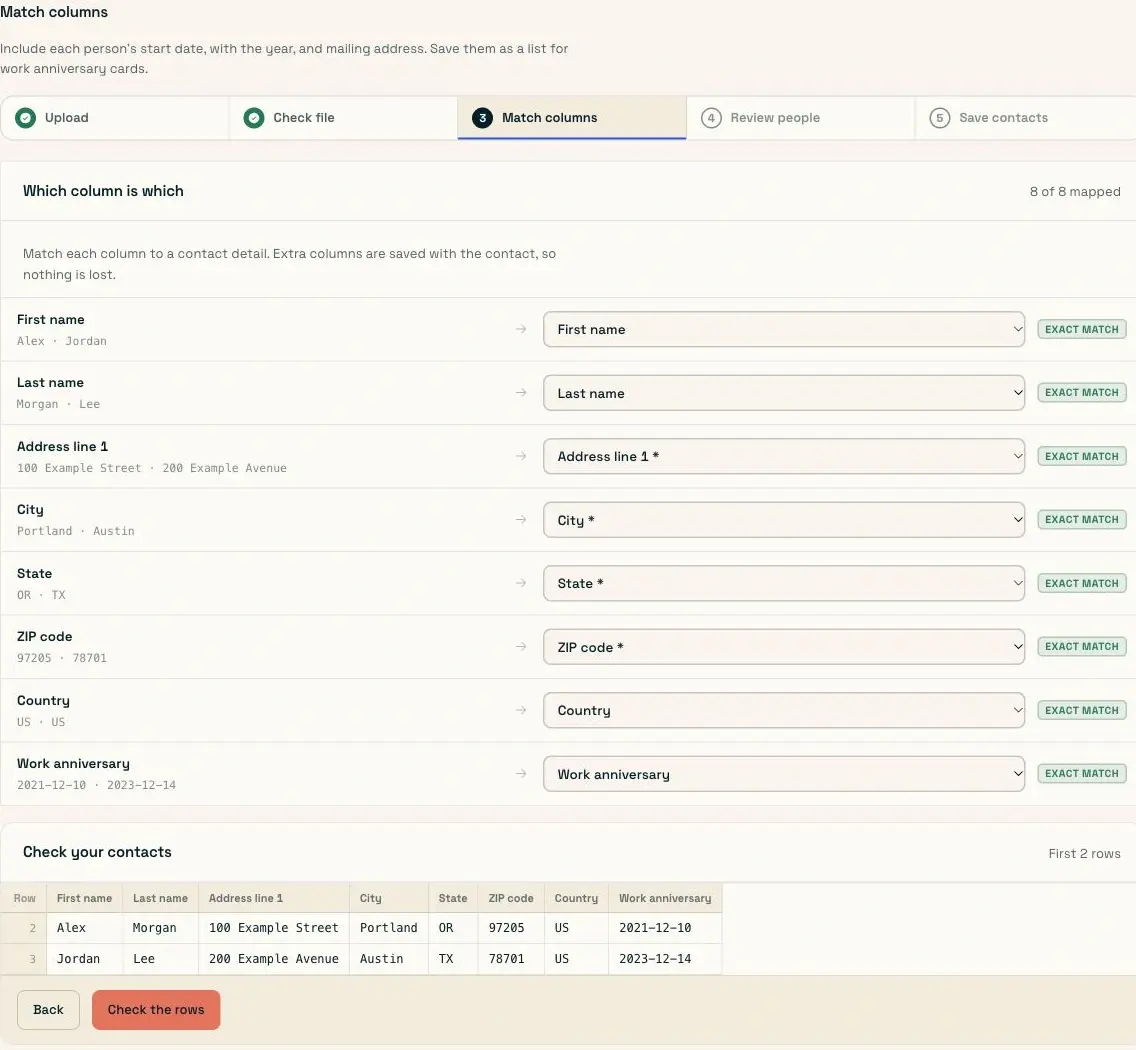
Check the year as well as the month and day. This field is separate from Birthday.
Choose Check the rows, fix any issues, and save the contacts to your selected list. Back at Who, check that the people with a start date and mailing address are ready. Choose Pick the card to continue.
3. Choose a card for the anniversary
At Card, select an outside suited to a work anniversary, congratulations, or a thank-you. This example uses “Another Year of Making a Difference,” which still makes sense when the year count changes. Check the selected design before choosing Write the message.
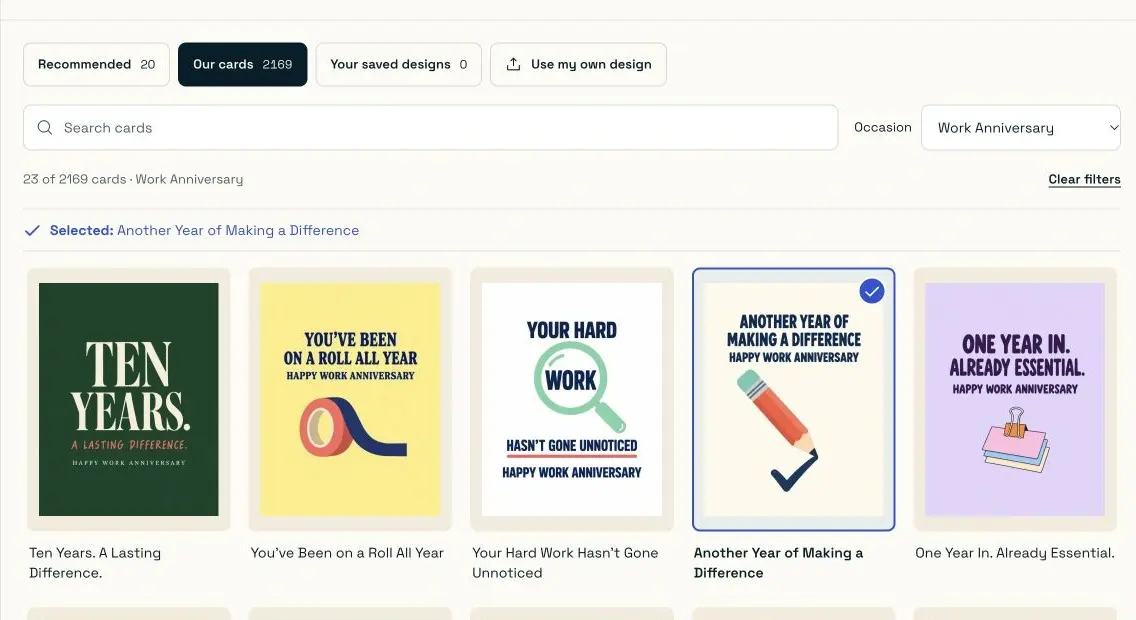
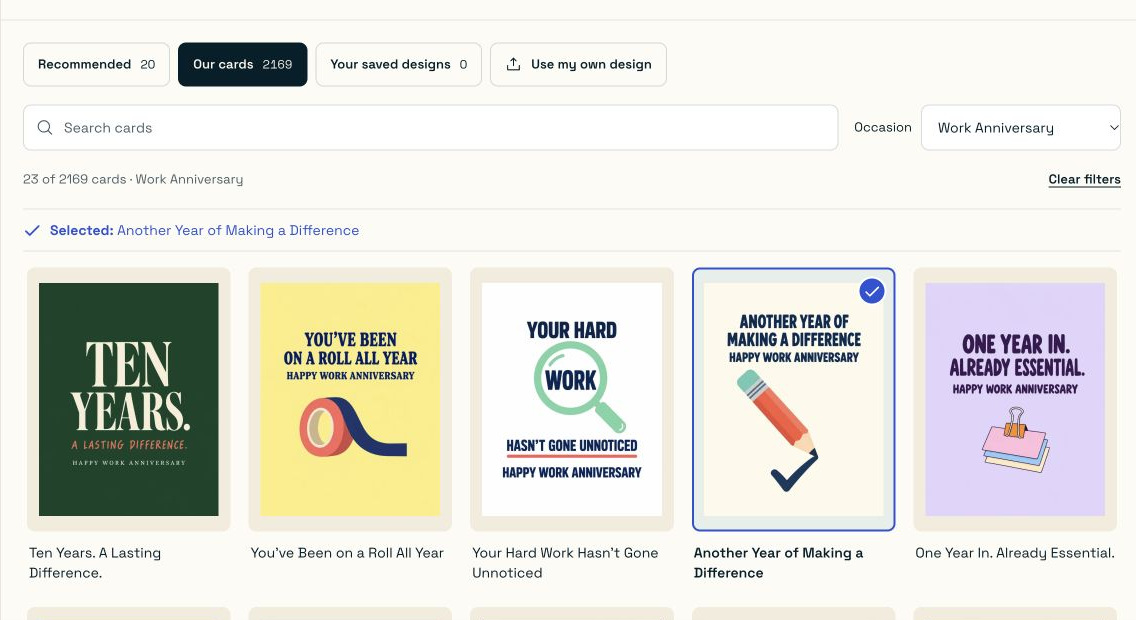
Choose the card for this work anniversary setup. It can differ from your birthday card.
4. Write a note that makes sense each year
Use the first-name field for the greeting. A note without a fixed year count works for the whole group:
Hi {{first_name}},
Happy work anniversary! Thank you for the care you put into your work. We’re glad you’re here.
Morgan
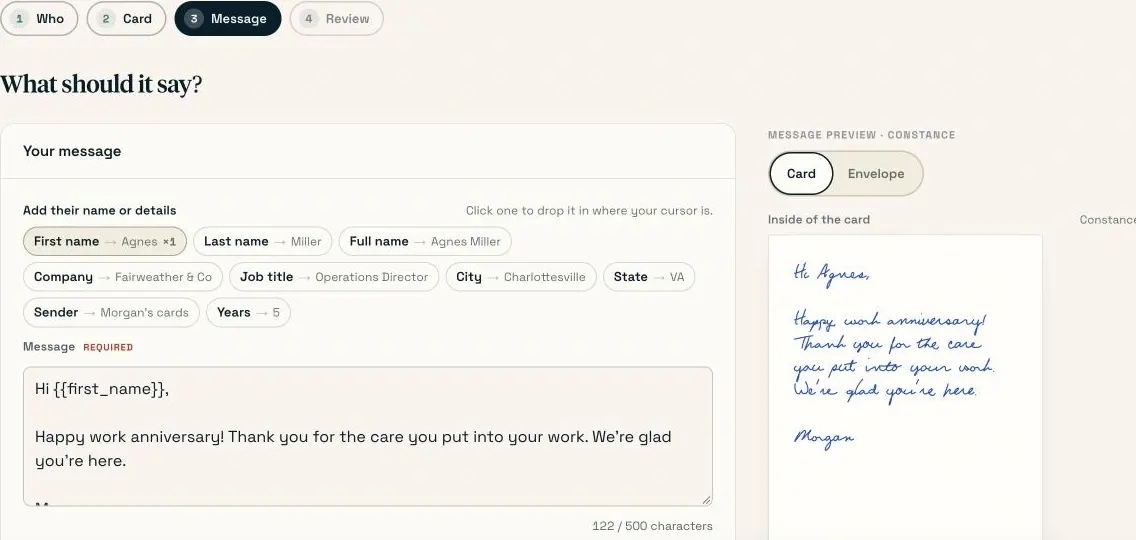
Keep the wording suitable for everyone in the selected list.
If you include the Years field, check the completed-year count and its fallback in the preview. Avoid “five years” typed directly into a message that will also go to someone celebrating their second year.
Check the handwriting, sign-off, and return address, then choose Review your cards.
5. Review the anniversary setup and start sending
Check the work anniversary occasion, selected list, card, full note, address proofs, and credit coverage. The saved start date provides the month and day for the annual card.
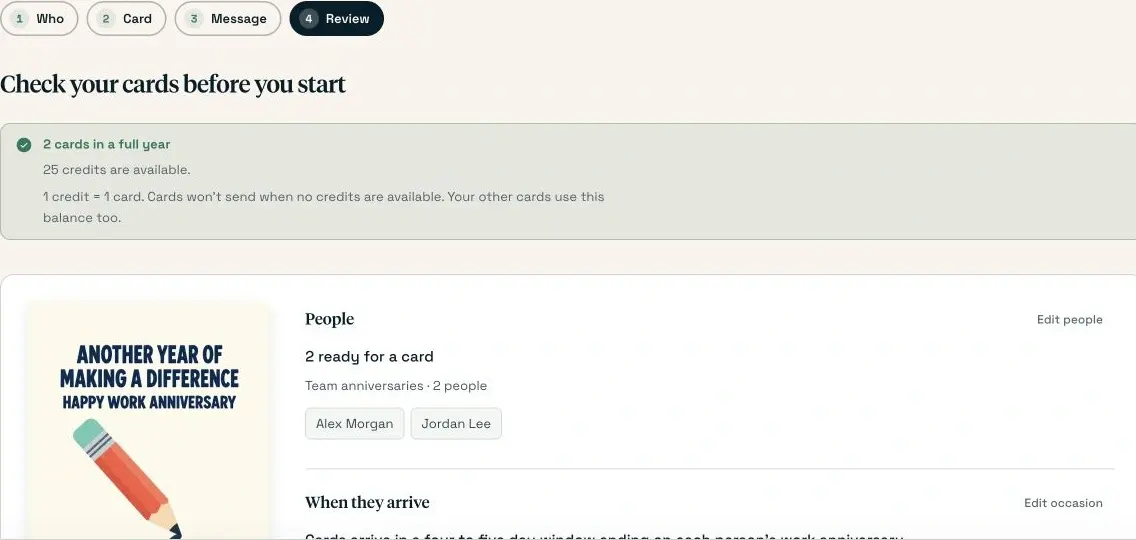
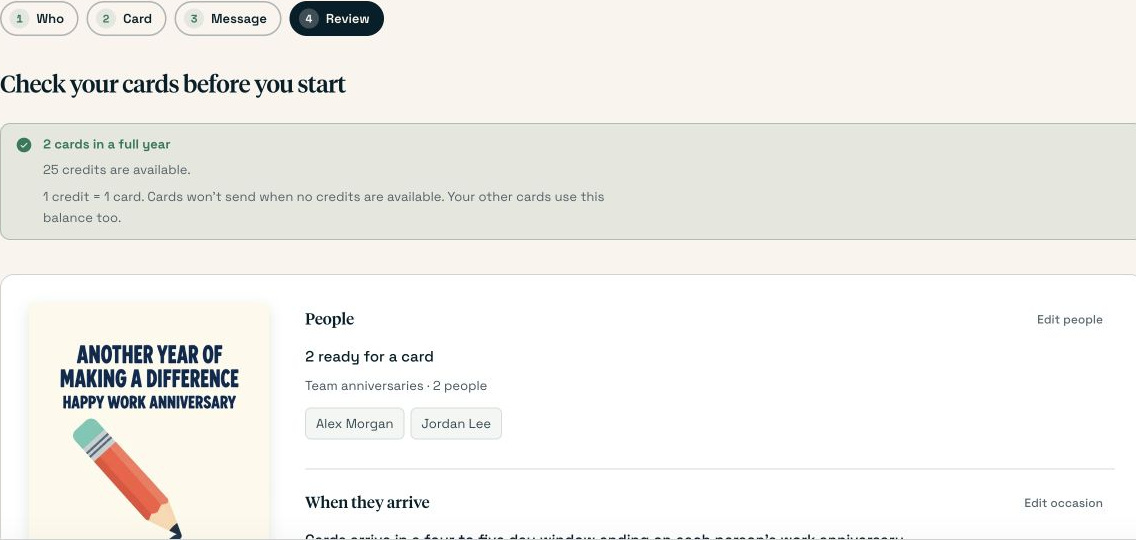
Check the occasion as well as the people. A correct list with the wrong date field sends cards for the wrong event.
Choose Start scheduled sending once the review is correct. Keep the employee list current, particularly when someone leaves or changes their mailing address. Our work anniversary card guide explains the date field in more detail.
How to use another saved date
For an annual home purchase anniversary or another recurring occasion, add a separate date column to your CSV. For example, use the heading home_anniversary and a full date such as 2022-11-18. Import it with the contact’s name and mailing address. At Match columns, set home_anniversary to Keep as custom data. Check this even if the importer suggests Work anniversary; a home purchase date needs to stay separate from the employment start date.
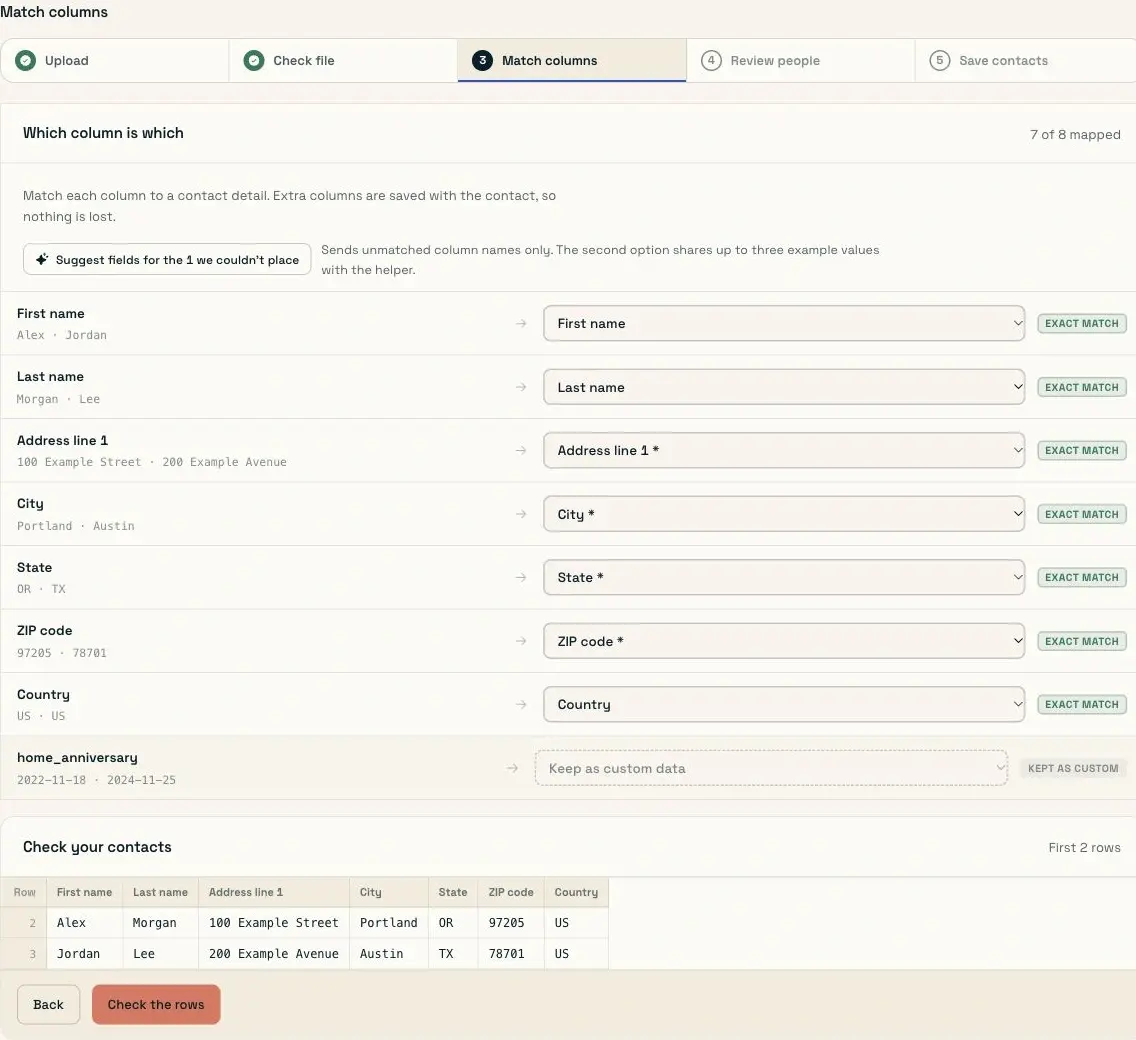
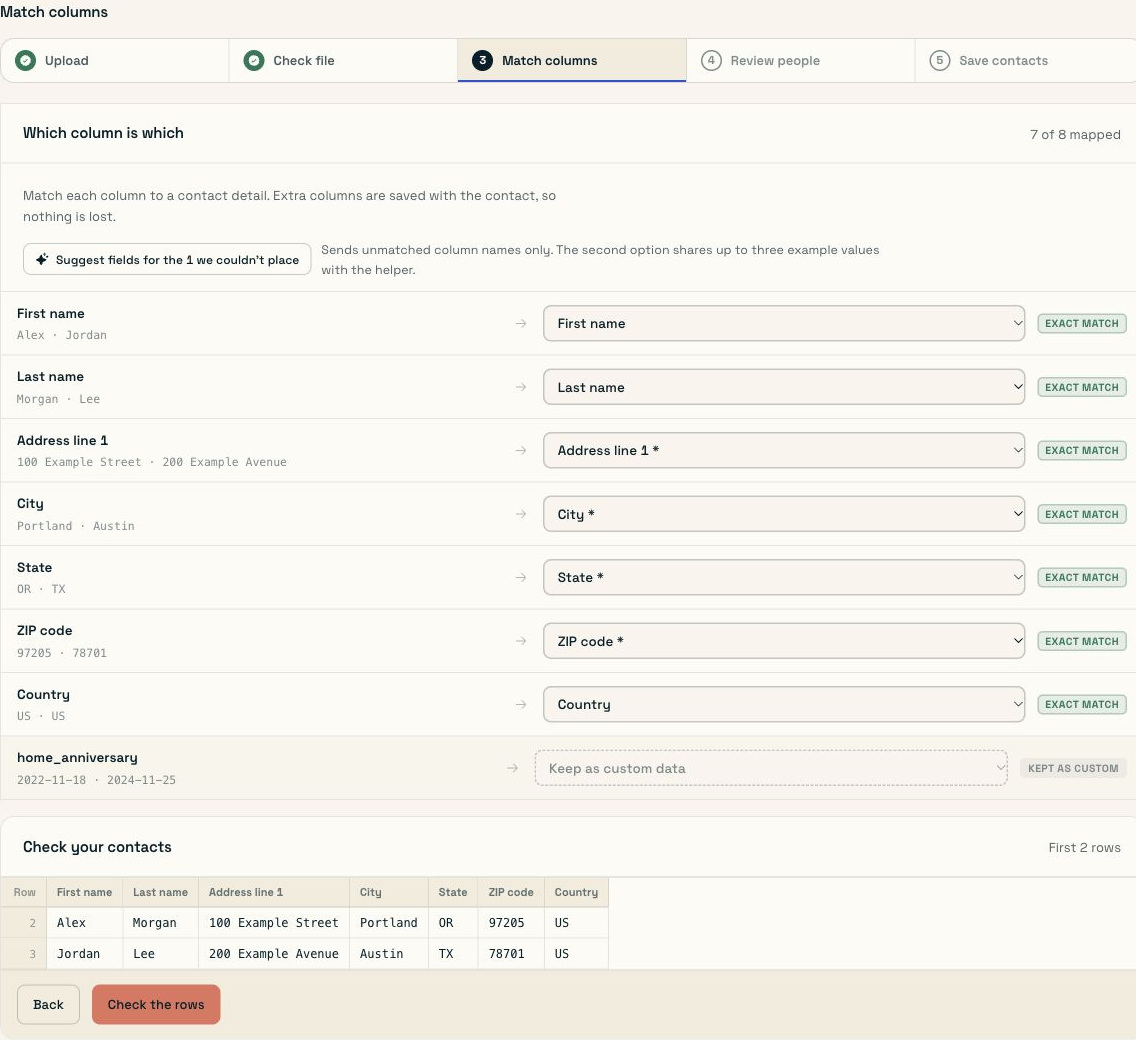
Keep this date in its own custom field, then select that field in the date setup.
Open Birthdays & dates and choose Set up cards. At Who, choose A date you imported under When to send a card. At Which date column, enter home_anniversary exactly as it appeared in the file, including the underscore. If your original heading used spaces or punctuation, check the saved custom field name after importing and use that name here.
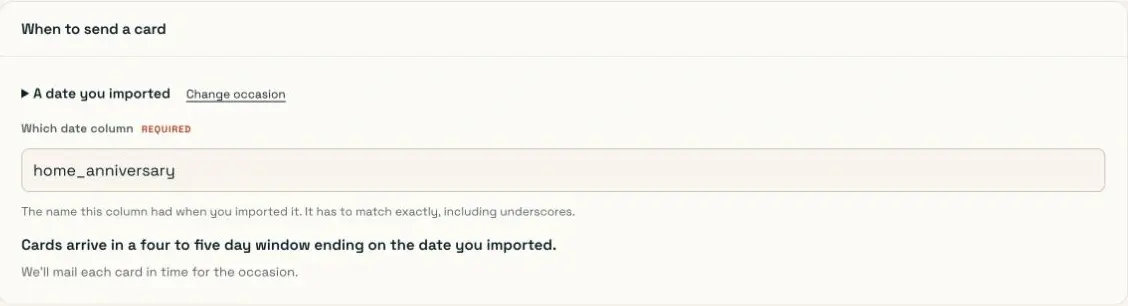
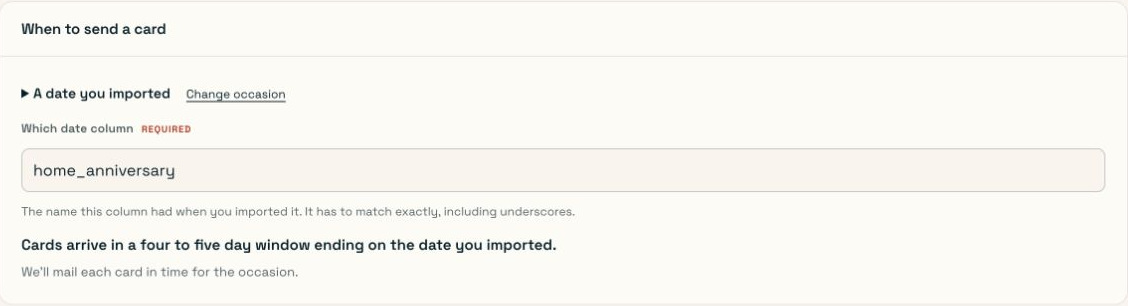
Use the saved custom field name here. Use a separate setup for each occasion you want to send for.
Choose the people or saved list, then work through Card, Message, and Review as shown above. Check the card, envelope, date, and credit coverage before choosing Start scheduled sending.
This date setup repeats each year. For a single mailing that should arrive by one date, use Send to a list and choose that date at Schedule.
How to send holiday cards
From My cards, choose Holiday cards, then Start holiday cards. This opens the mailing steps with the holiday occasion selected.
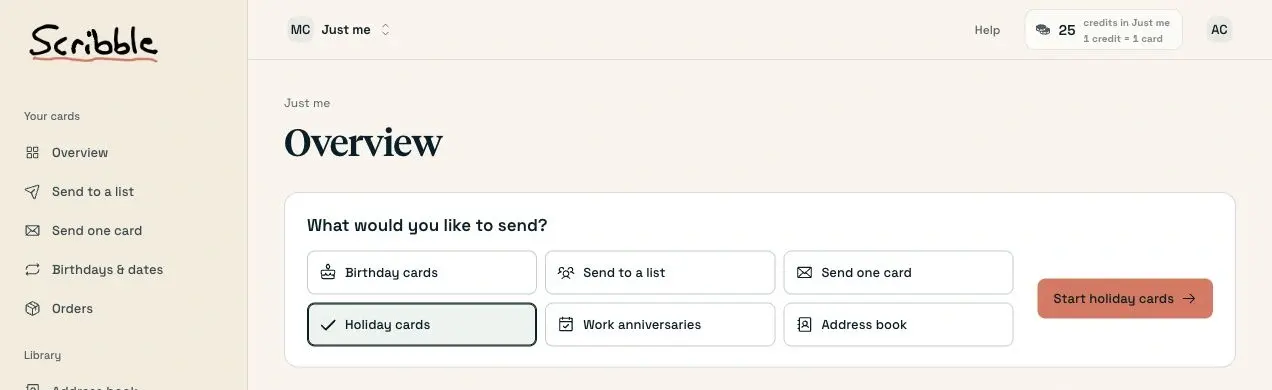
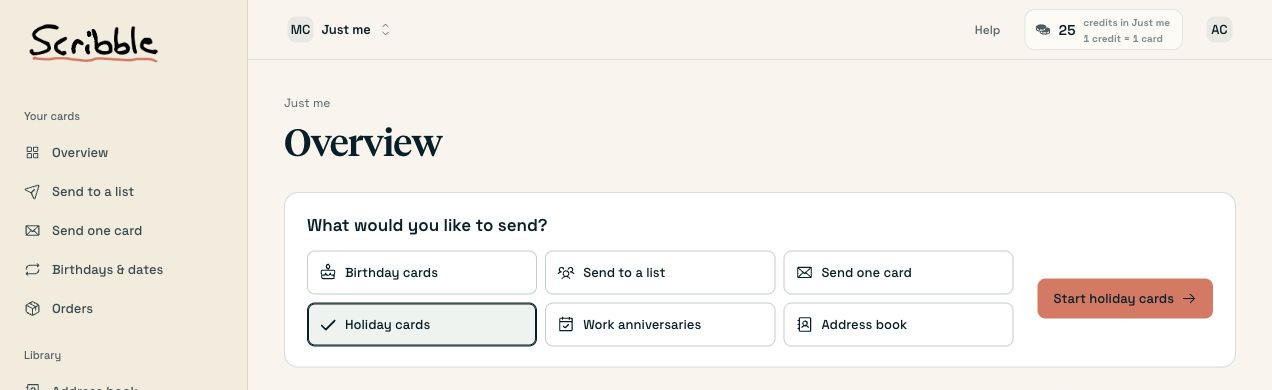
Start here, then follow the full list walkthrough above.
Import or select your people at Recipients, choose the holiday outside at Design, and write the note at Message. Check every personalized card, then choose the arrival date at Schedule and review the run before scheduling it. The list walkthrough shows each of those screens.
For a client holiday note:
Hi {{first_name}},
Wishing you a restful holiday season. Thank you for working with us this year.
Morgan and the Maple team
Check households as well as individual contacts if you intend to send one card to a couple or family. Start early enough for the arrival window shown in your mailing. The holiday mailing guide has more detail.
Use the same steps for your business
Real estate agents
Use a mailing for neighborhood introductions or client thank-yous. For an annual home purchase anniversary, use a separate imported date as shown above.
Hi Alex,
One year on Willow Street already. I hope you’re enjoying the place. If you need a local contractor, I’m happy to share a few names.
Morgan
Cedar & Stone Realty
Use this as a one-year note. For a repeating annual message, change “One year” to wording that will still make sense next year. Our handwritten mail guide for real estate agents covers choosing a farm, writing a prospecting offer, and planning repeat mailings.
Financial advisors and wealth management teams
Use the birthday setup for clients who have shared their dates. Keep the note about the person’s birthday; an account update can be a separate communication.
Hi Jordan,
Happy birthday! I hope you have something good planned for today. Wishing you a lovely day and a great year ahead.
Sam
Use your firm’s usual review process for client communications. Our financial advisor direct-mail guide covers other reasons to write.
Accounting firms
Use birthday cards for clients who have shared their dates, or a mailing for thank-yous after a completed piece of work. Choose a team sign-off when that is how the client knows you.
Hi Casey,
Happy birthday from all of us at Maple Accounting. We hope you get some time to celebrate today.
Taylor and the Maple team
Keep private tax and account details out of a greeting. For a thank-you, name the work or help you’re thanking them for.
Questions before you send
Is the message written with a real pen?
Yes. Scribble Cards’ writing machines hold a pen and write the message in ink. You type the words and choose the handwriting online; the recipient gets a physical card in the mail. How handwritten cards work explains the process.
Can I send just one card?
Yes. Use Send one card from My cards, choose the outside, write the note, add the addresses, and review the order. You can buy one card individually; larger credit bundles are available if you plan to send more.
Can I schedule a card for an exact day?
The mailing and saved-date tools show an expected arrival window. Check that window for the card you’re setting up. USPS delivery varies, so allow enough lead time and avoid relying on an exact arrival day.
Can I save a card and finish it later?
In the one-card editor, Save for later keeps the draft in that browser for seven days. Reopen it in the same browser to continue. Don’t assume that simple one-card draft follows you to another device.
Can I send a card from ChatGPT?
Yes, through the connected Scribble Cards app. The ChatGPT card guide shows that route. The website walkthrough above shows how to choose the outside and check the handwriting directly.
Add your own outside design
Upload directly while you’re choosing the card: select Upload an image at a mailing’s Design step, or Use my own design at a birthday or date setup’s Card step. Click Choose artwork, select your file, and check how it sits on the outside. Enter a Design name, then choose Save and use this design to continue in the same setup.
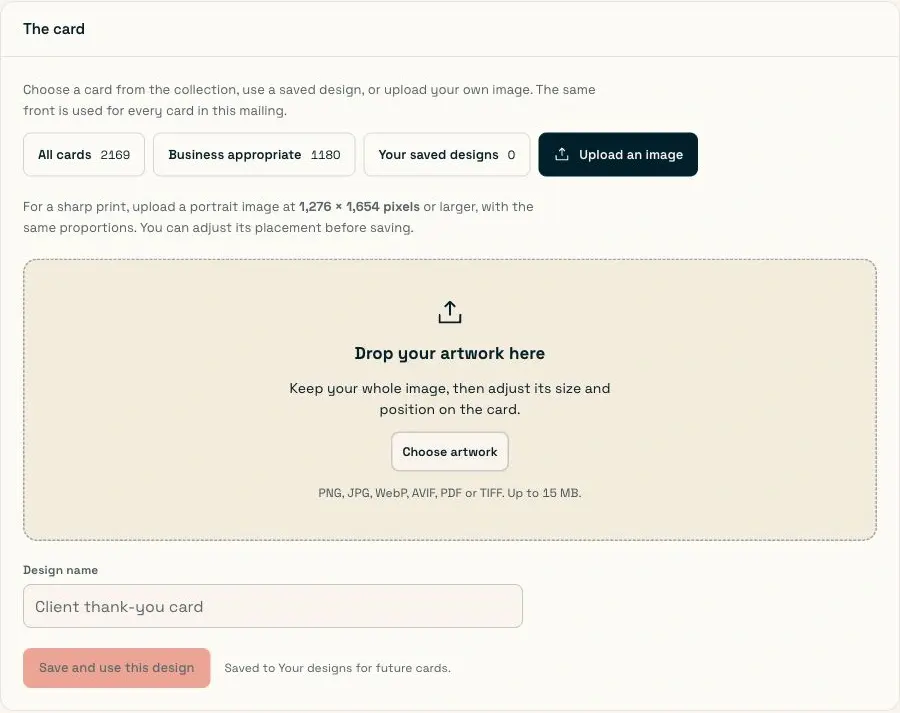
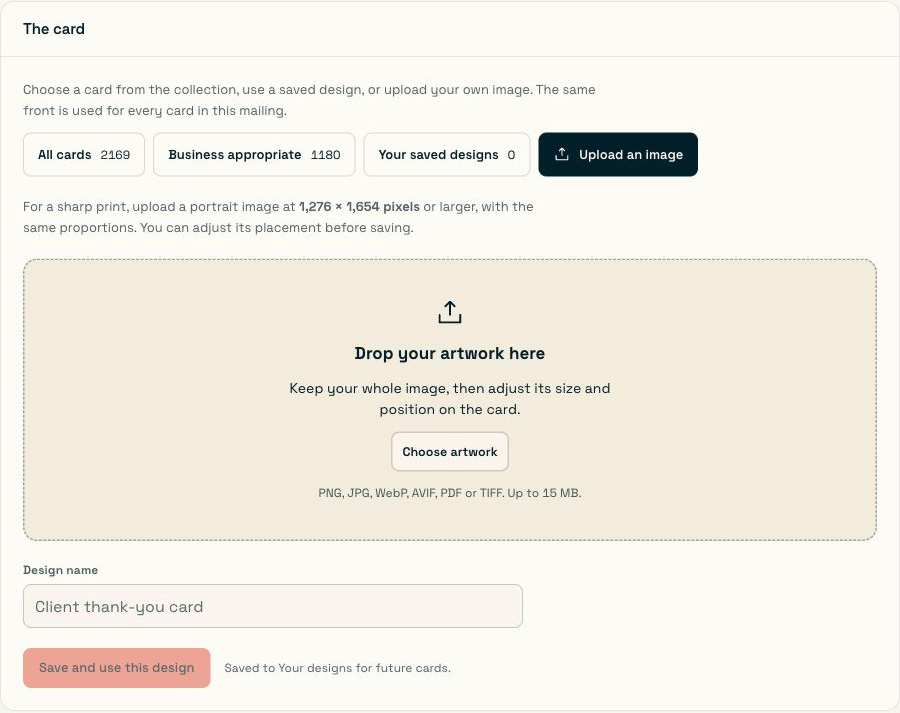
Upload the outside artwork here. Write the inside message in its own Message step.
For one card with your own artwork, follow the mailing steps with one recipient.
Use a portrait image at 1,276 × 1,654 pixels or larger with the same proportions. Keep important text and logos clear of the edges and check that they’re readable in the preview. The outside artwork guide covers supported upload formats.
Ready to start? Open My cards.